

Connection URI (recommended)
The easiest way to connect is by using the connection string (URI) method. In Basedash, press Cmd/Ctrl K and paste your connection string to start the connection flow immediately. Example:Note: The password is not always visible in your database dashboard. Make sure you have access to it—this may be stored in a password manager like 1Password or LastPass, or you may need to contact a teammate who has the credentials.
Tip: Labels and connection methods may differ depending on your hosting provider (GCP, AWS, DigitalOcean, etc.). Always check your provider’s documentation for the latest info.
Manual connection details
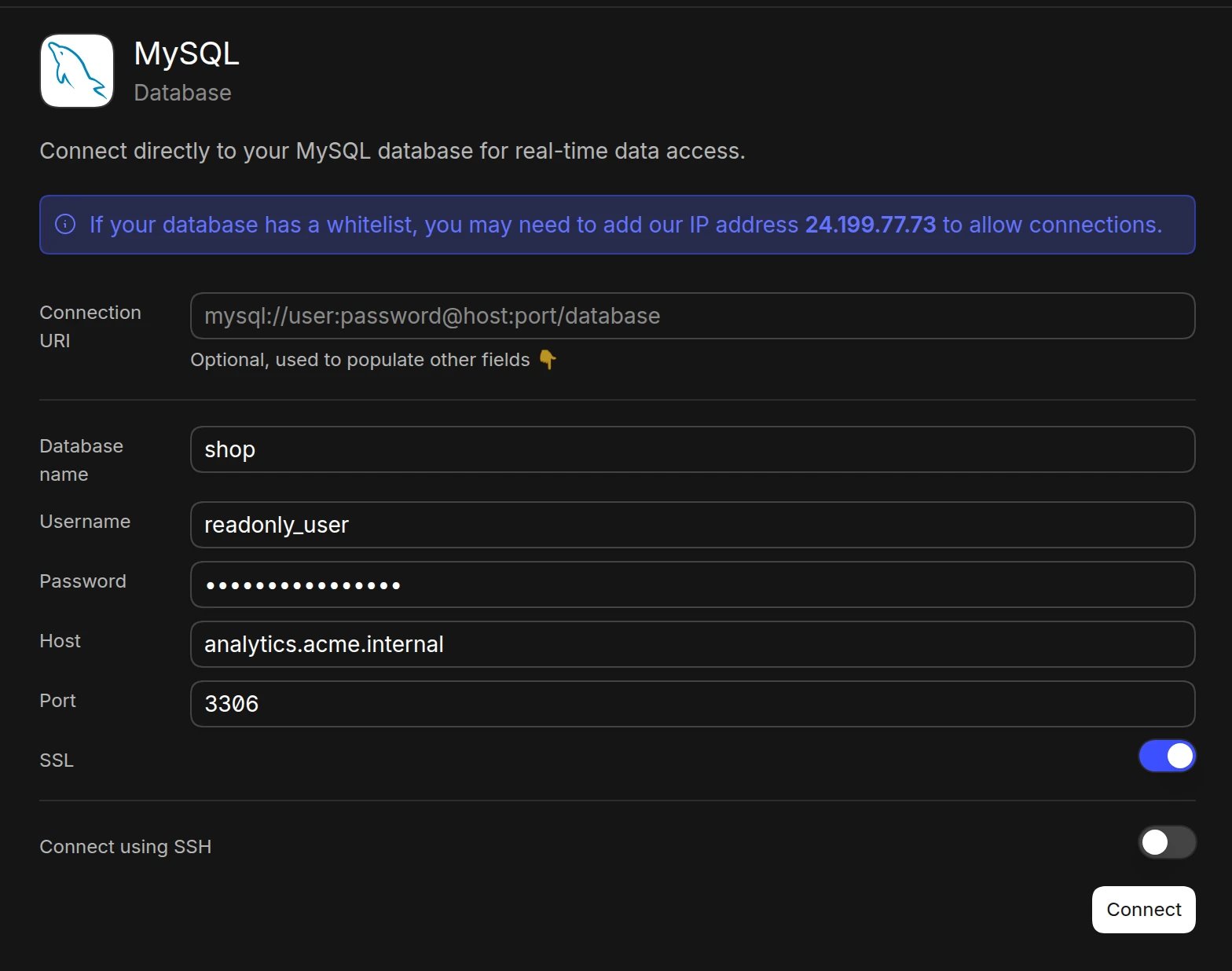
If you prefer to enter credentials manually, use the following details:- Open the Data page and click Add data source
- Select MySQL
- Enter your connection details:
- Database name
- Username
- Password
- Host (e.g.,
localhostoryour-db.host.com) - Port (default: 3306)
- SSL (turn on if your database requires it)
- Click Connect. Basedash checks the connection, then opens the new data source and starts syncing its schema.
SSH tunnel
For enhanced security when your database is in a private network:- Follow the manual connection steps above, but don’t click Connect yet
- Turn on Connect using SSH
- Add our IP (
24.199.77.73) to your allowlist - Provide SSH connection details:
- SSH host and SSH port
- SSH username
- Set Authentication method to Private key (recommended) and paste your SSH private key, plus its passphrase if it has one. Password authentication is also supported.
- Click Connect
Best practices
- Use a read-only database user for Basedash
- Consider using an SSH tunnel for databases in private networks
- Regularly rotate database credentials
- Monitor query performance and set appropriate limits
Troubleshooting
For what each connection error means and how to fix it, see Connection settings.- Ensure your database user has SELECT permissions on required tables
- Check if your database host allows external connections
- Verify firewall rules allow connections from Basedash IP
- For connection issues, check database logs for error messages
Next steps: Add custom context
You can add custom context to help the AI better understand your data structure and business logic. Consider adding context at the database or schema level if you notice the AI struggling to locate or understand specific data.When to add context
- Complex JSON columns: When the AI needs help understanding nested data structures
- Unclear naming conventions: If table or column names don’t clearly indicate their purpose
- Business-specific terminology: When your data uses internal abbreviations or custom terms