

Prerequisites
- A Google Cloud project with BigQuery enabled
- Service account with BigQuery access
- Service account key file (JSON)
- Relevant dataset permissions
Connection setup
- Open the Data page and click Add data source
- Select BigQuery
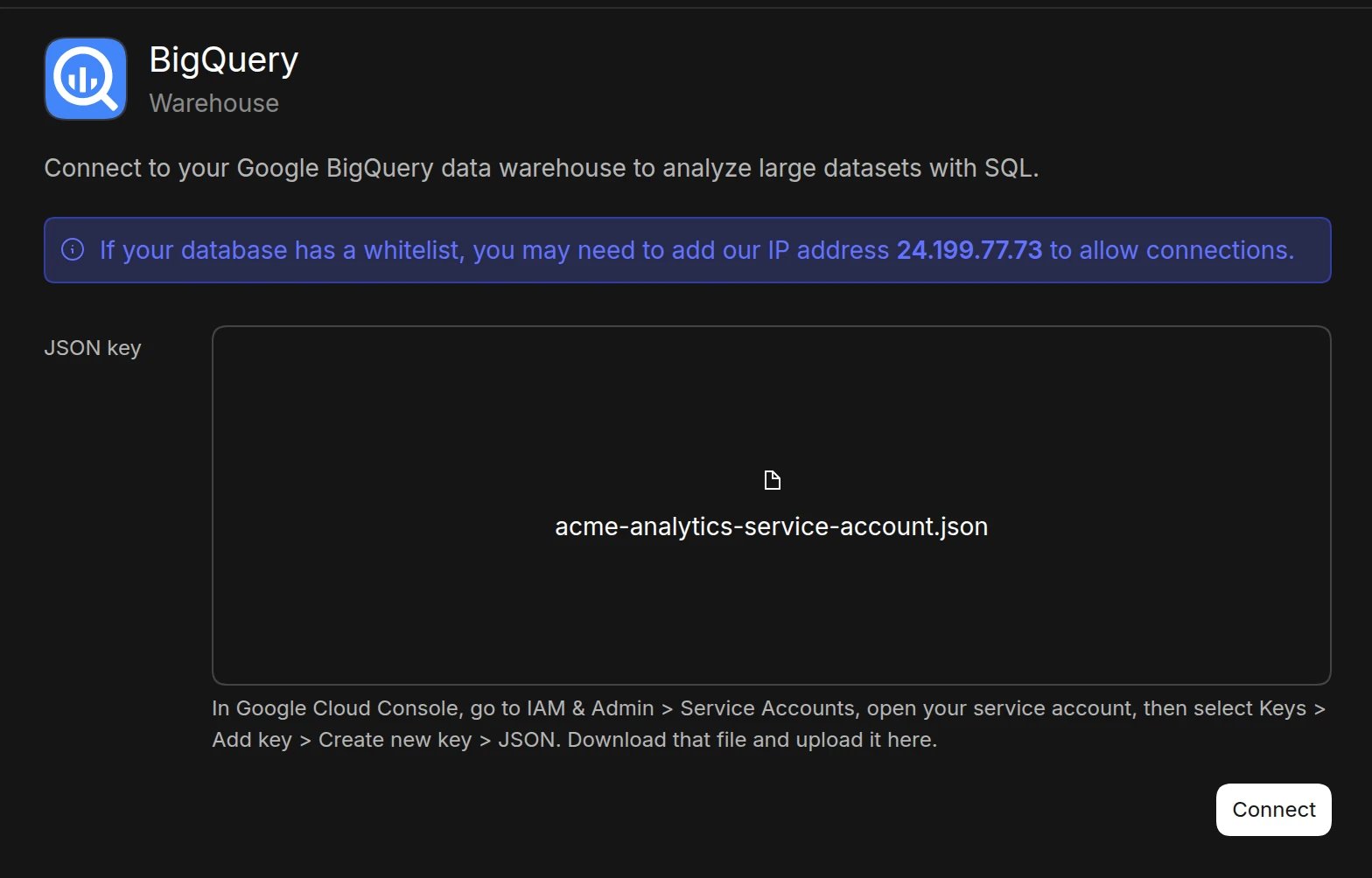
- Under JSON key, upload your service account key file. Basedash reads the project from the key.
- Click Connect. Basedash checks the connection, then opens the new data source and starts syncing its schema.
Required permissions
Your service account needs the following IAM roles:roles/bigquery.dataViewer- to read dataroles/bigquery.jobUser- to run queriesroles/bigquery.resourceViewer- to list projects and datasets
Best practices
- Create a dedicated service account for Basedash
- Grant minimum required permissions
- Regularly rotate service account keys
- Use table partitioning for large datasets
- Set appropriate query cost limits
Performance optimization
- Use clustered and partitioned tables
- Materialize commonly used views
- Create appropriate table statistics
- Monitor query costs and performance
- Set up appropriate caching policies
Troubleshooting
For what each connection error means and how to fix it, see Connection settings.- Verify service account permissions
- Check if datasets are accessible
- Monitor query quotas and limits
- Review BigQuery audit logs for errors
Next steps: Add custom context
You can add custom context to help the AI better understand your data structure and business logic. Consider adding context at the dataset or schema level if you notice the AI struggling to locate or understand specific data.Automatic metadata import
Basedash automatically imports table and column descriptions that are already set up in your BigQuery instance. If you have existing metadata in BigQuery, it will be available in Basedash without additional configuration.When to add context
- Complex transformed data: When the AI needs help understanding data transformation logic
- Business-specific metrics: If calculated fields or KPIs need additional explanation
- Unclear naming conventions: When table or column names don’t clearly indicate their purpose