

Prerequisites
- A ClickHouse server or cloud instance
- User credentials with appropriate access
- Server host and port information
- SSL certificates (if using secure connection)
Connection setup
- Open the Data page and click Add data source
- Select ClickHouse
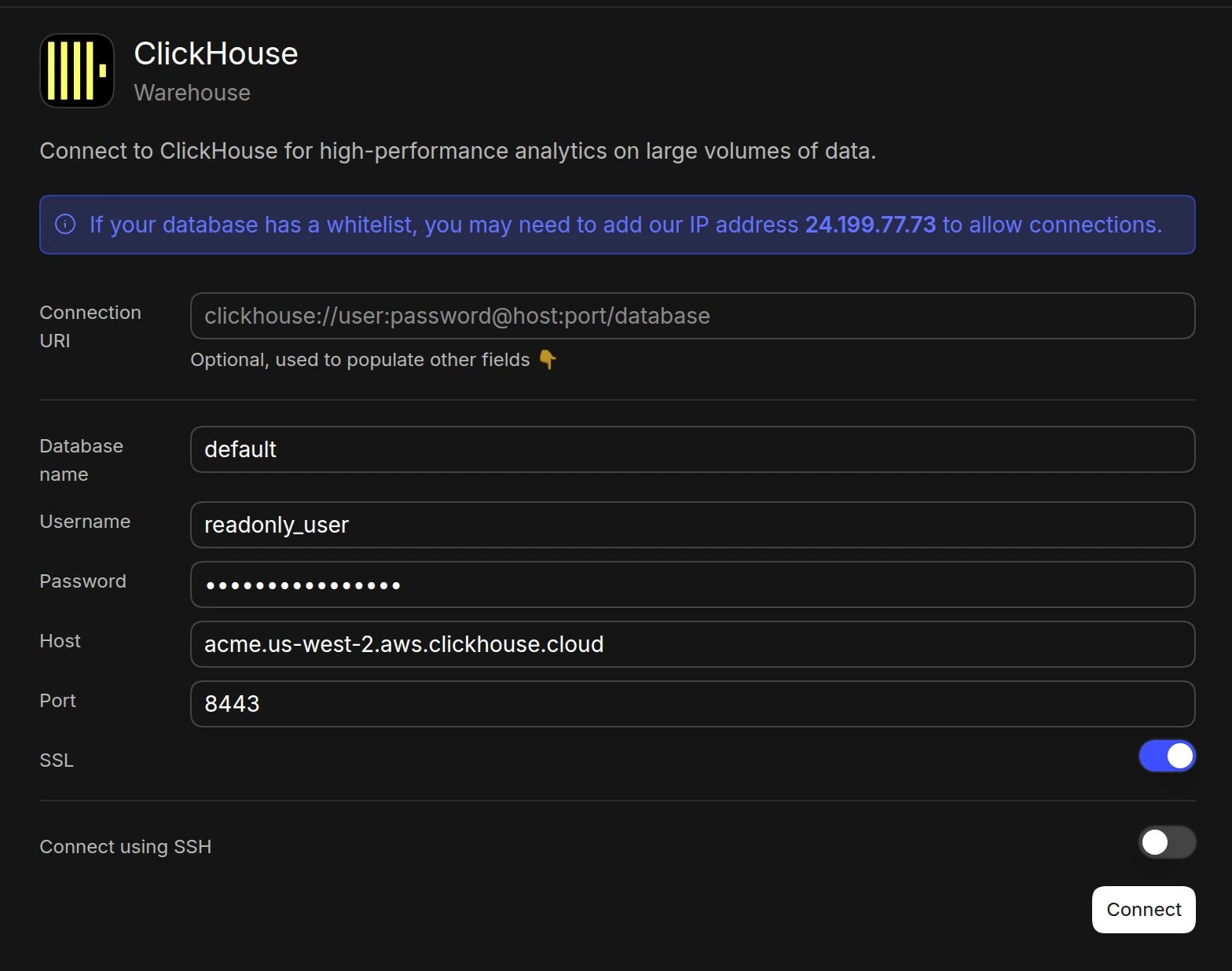
- Enter your connection details:
- Database name
- Username
- Password
- Host
- Port: the HTTP interface port, usually 8443 with SSL (the default, and what ClickHouse Cloud uses) or 8123 without
- SSL (turn on for HTTPS)
- Click Connect. Basedash checks the connection, then opens the new data source and starts syncing its schema.
Required permissions
Your ClickHouse user needs:SELECTprivilege on required databases/tablesSHOWprivilege on databasesSHOW TABLESprivilegeSHOW COLUMNSprivilege
Best practices
- Create a dedicated user for Basedash
- Enable SSL for secure connections
- Grant minimum required permissions
- Set appropriate query limits
- Regularly rotate credentials
Performance optimization
- Use appropriate table engines
- Configure proper partitioning
- Set up materialized views
- Monitor query performance
- Use efficient indexing
- Enable query caching
Troubleshooting
For what each connection error means and how to fix it, see Connection settings.- Verify user permissions
- Check server connectivity
- Monitor resource usage
- Review server logs
- Validate query syntax
- Check SSL configuration
Next steps: Add custom context
You can add custom context to help the AI better understand your data structure and business logic. Consider adding context at the database or schema level if you notice the AI struggling to locate or understand specific data.When to add context
- Complex analytics data: When the AI needs help understanding data structure and metrics
- Business-specific metrics: If calculated fields or KPIs need additional explanation
- Unclear naming conventions: When table or column names don’t clearly indicate their purpose