

Connection URI (recommended)
The easiest way to connect is by using the connection string (URI) method. In Basedash, press Cmd/Ctrl K and paste your connection string to start the connection flow immediately. Example:Note: The password is not always visible in your database dashboard. Make sure you have access to it—this may be stored in a password manager like 1Password or LastPass, or you may need to contact a teammate who has the credentials.
Tip: Labels and connection methods may differ depending on your hosting provider (GCP, AWS, DigitalOcean, etc.). Always check your provider’s documentation for the latest info.
Manual connection details
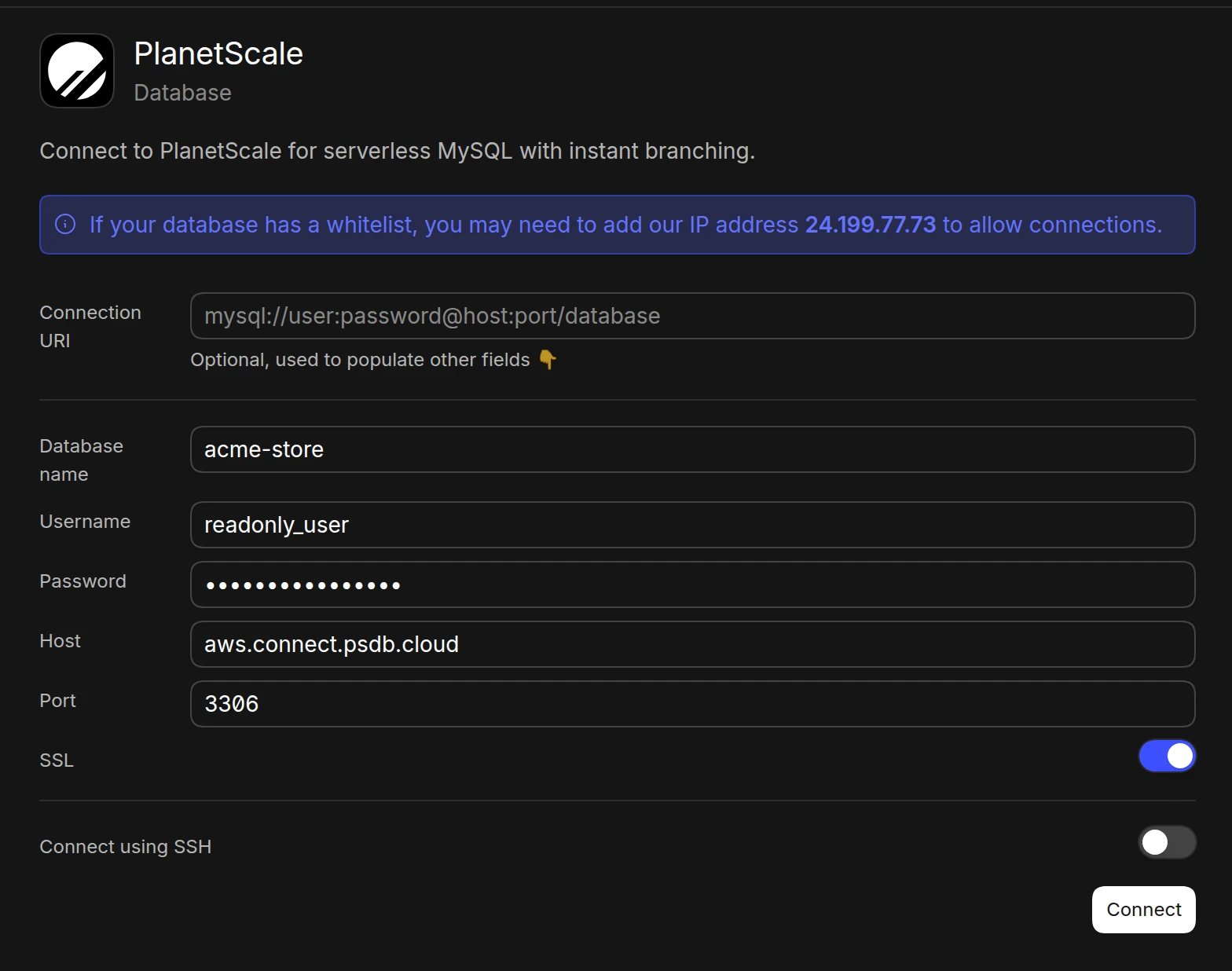
If you prefer to enter credentials manually, use the following details:- Open the Data page and click Add data source
- Select PlanetScale
- Enter your connection details:
- Database name
- Username
- Password
- Host (from PlanetScale connection string)
- Port (default: 3306)
- SSL (required by PlanetScale, so leave it on)
- Click Connect. Basedash checks the connection, then opens the new data source and starts syncing its schema.
Required permissions
- Database password with read access
- Access to the desired branch (main or development)
- Appropriate organization permissions
Best practices
- Use a dedicated password for Basedash
- Connect to the appropriate branch
- Enable SSL for secure connections
- Regularly rotate database passwords
- Monitor query performance
Performance optimization
- Use appropriate indexes
- Monitor slow queries
- Set up proper schema design
- Configure connection pools
- Use query caching when possible
Troubleshooting
For what each connection error means and how to fix it, see Connection settings.- Verify database password is active
- Check branch availability
- Monitor connection limits
- Review query logs
- Validate SSL configuration
Next steps: Add custom context
You can add custom context to help the AI better understand your data structure and business logic. Consider adding context at the database or schema level if you notice the AI struggling to locate or understand specific data.When to add context
- Complex JSON columns: When the AI needs help understanding nested data structures
- Unclear naming conventions: If table or column names don’t clearly indicate their purpose
- Business-specific terminology: When your data uses internal abbreviations or custom terms