

Prerequisites
- A Snowflake account
- User credentials with appropriate access
- An RSA key pair assigned to your Snowflake user (recommended)
- Account identifier (organization-account.region)
- Warehouse, database, and schema information
Snowflake is phasing out single-factor password
authentication.
We recommend connecting with key pair authentication. Password authentication
is still supported for now.
Connection setup
- Open the Data page and click Add data source
- Select Snowflake
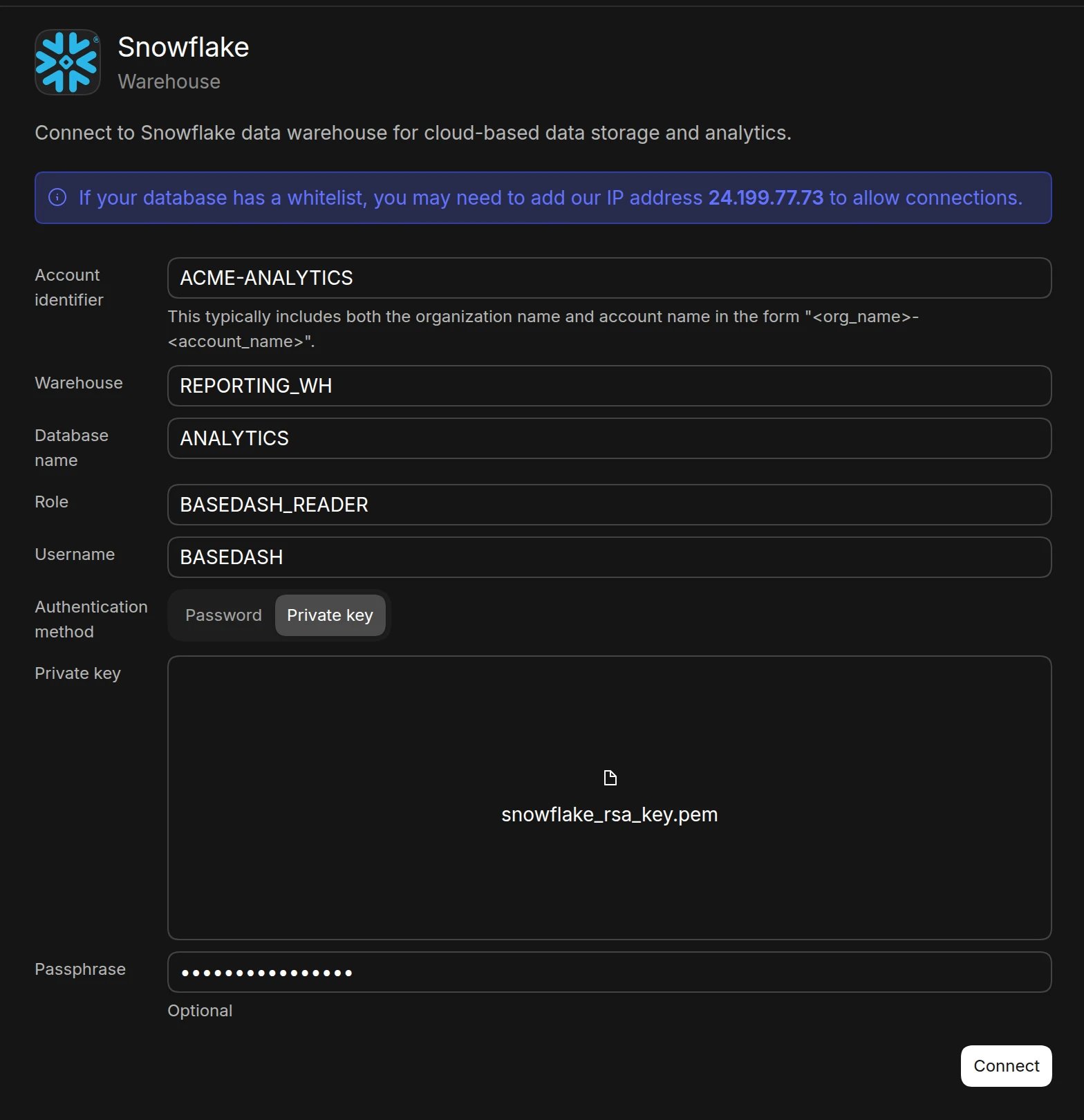
- Enter your connection details:
- Account identifier, usually
<org_name>-<account_name> - Warehouse
- Database name
- Role
- Username
- Account identifier, usually
- Set Authentication method to Private key (recommended) and fill in:
- Private key: upload the RSA private key associated with your Snowflake user
- Passphrase (optional, only if your key is encrypted)
- Click Connect. Basedash checks the connection, then opens the new data source and starts syncing its schema.
Connect with a password
If you haven’t set up key pair authentication yet, you can still connect with a password:- Set Authentication method to Password
- Enter your username and password along with the other connection details above
Required permissions
Your Snowflake user needs:USAGEon warehouseUSAGEon databaseUSAGEon schemaSELECTon required tablesMONITORon warehouse (recommended)
Best practices
- Create a dedicated user for Basedash
- Use appropriate warehouse sizing
- Grant minimum required permissions
- Set resource monitors for cost control
- Regularly rotate credentials
Performance optimization
- Choose appropriate warehouse size
- Use clustering keys for large tables
- Leverage materialized views
- Set up proper table maintenance
- Configure query timeouts
- Enable result caching
Troubleshooting
For what each connection error means and how to fix it, see Connection settings.- Verify user permissions
- Check warehouse availability
- Monitor credit usage
- Review query history for errors
- Validate network access
Next steps: Add custom context
You can add custom context to help the AI better understand your data structure and business logic. Consider adding context at the database or schema level if you notice the AI struggling to locate or understand specific data.When to add context
- Complex transformed data: When the AI needs help understanding data transformation logic
- Business-specific metrics: If calculated fields or KPIs need additional explanation
- Unclear naming conventions: When table or column names don’t clearly indicate their purpose