

Prerequisites
- A Google Cloud project with Cloud Spanner enabled
- Service account with Spanner access
- Service account key file (JSON)
- Instance and database information
Connection methods
Direct connection
- Open the Data page and click Add data source
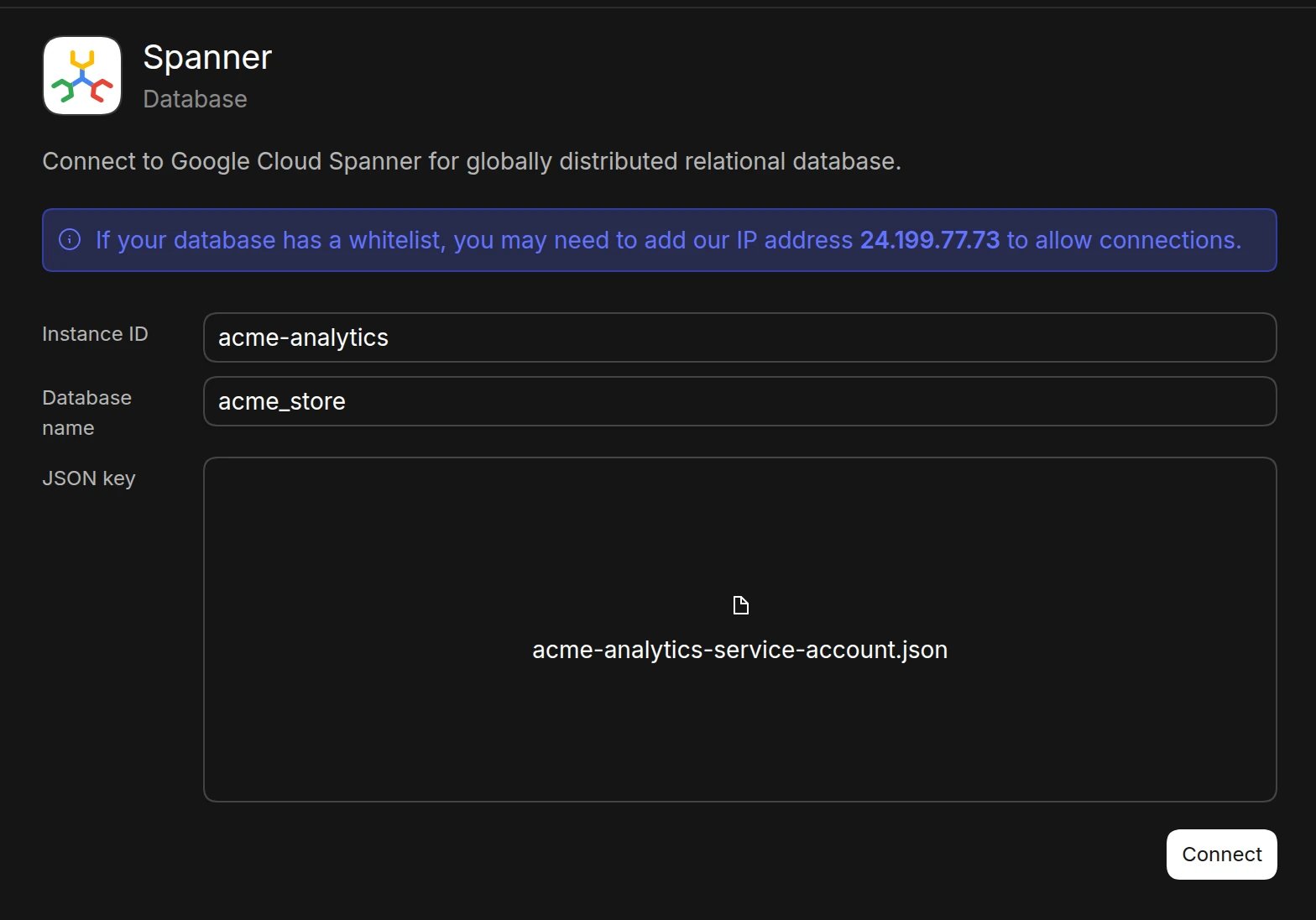
- Select Spanner
- Enter your connection details:
- Instance ID
- Database name
- JSON key: upload your service account key file. Basedash reads the project ID from the key.
- Click Connect. Basedash checks the connection, then opens the new data source and starts syncing its schema.
Required permissions
Your service account needs the following IAM roles:roles/spanner.databaseReader- to read dataroles/spanner.viewer- to view instance and database information
Best practices
- Create a dedicated service account for Basedash
- Grant minimum required permissions
- Regularly rotate service account keys
- Monitor query performance and costs
- Use appropriate instance configurations
Performance optimization
- Design efficient schemas
- Use appropriate indexes
- Monitor query patterns
- Set up proper backup policies
- Configure appropriate resource limits
Troubleshooting
For what each connection error means and how to fix it, see Connection settings.- Verify service account permissions
- Check instance and database status
- Monitor quota usage
- Review Spanner audit logs
- Validate network connectivity