

Available on all plans. Admins and members can create automations.
Overview
Use automations for recurring reports, alerts, and workflows, such as a Monday summary of last week’s signups, an alert when a large order comes in, or a monthly revenue review. Each run is a full AI analysis, so the write-up changes with your data. Automations can run on a schedule, when a SQL query finds new rows, or only when someone starts them. They can use tools from MCP connectors, for example to create a Linear issue or post to another app. If you only need a picture of a dashboard or chart on a schedule, use a subscription. If you want Basedash to find things you didn’t ask about, use Insights.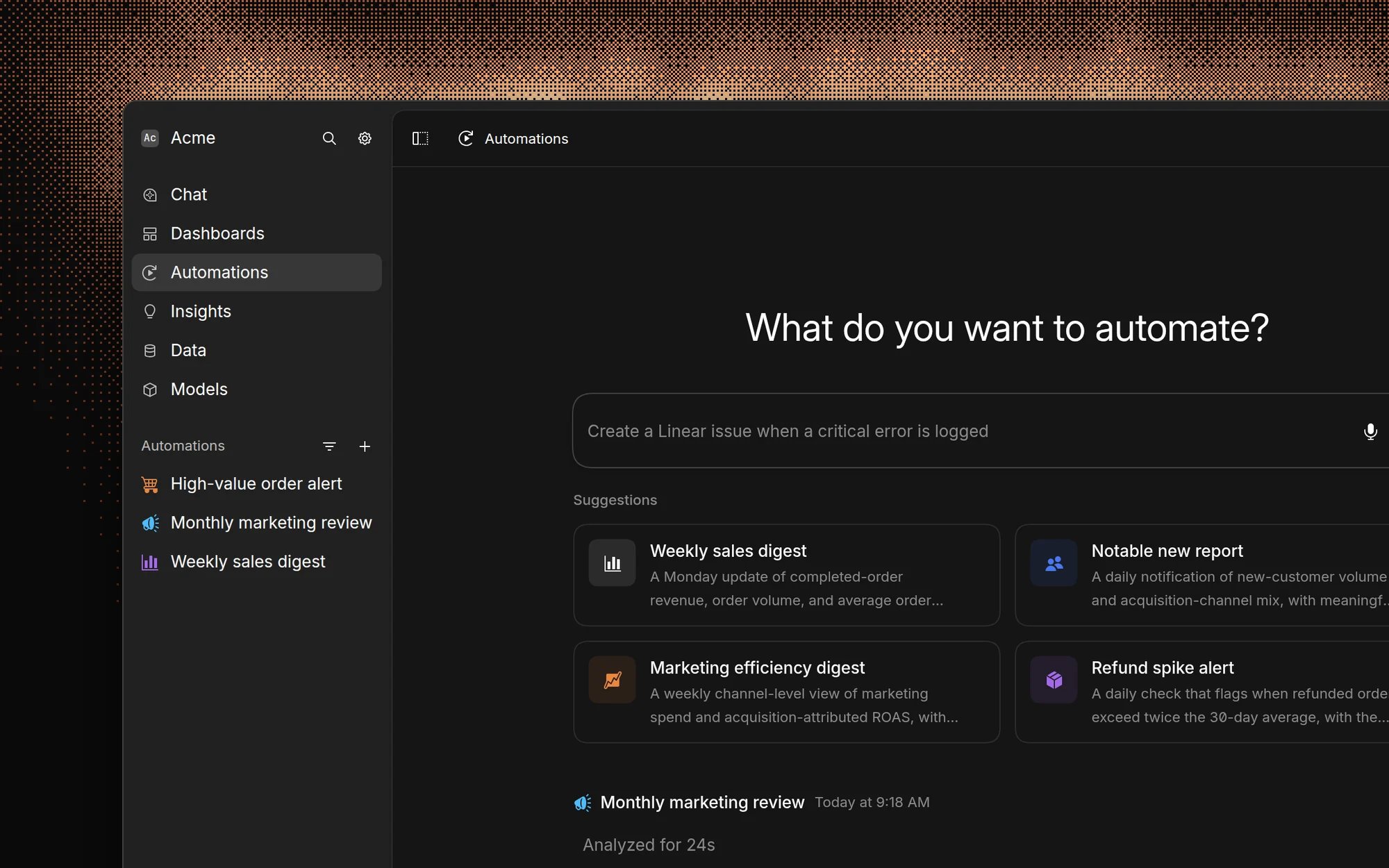
Create an automation
The fastest way is to describe what you want:- Click Automations in the sidebar.
- Under What do you want to automate?, describe the automation, for example “Send a daily summary of revenue and signups to #growth”.
- Press Enter. The AI creates the automation, chooses a trigger and schedule, and writes the instructions.
- Review the automation and adjust anything you like.
Configure an automation
Each automation has four parts: an Active switch, a Trigger, Instructions, and Notifications.Instructions
Under Instructions, tell the AI what data to analyze and what to include in each run. Write them the way you’d brief an analyst: name the metrics, the time period, the format, and anything to compare against. The AI sees a summary of up to 15 earlier runs, so instructions like “compare to last week’s report” work. To send something only when a condition is met, say so in the instructions, for example “Only send a notification if revenue dropped more than 10%”. When the condition isn’t met, the run is saved but nothing is delivered.Triggers
Click Add trigger to choose when the automation runs. An automation without a trigger only runs when someone starts it.
You pick the time in your own time zone, and Basedash stores it in UTC.
When data changes
Use a data-change trigger when the automation should run only after a query finds new or changed rows. Choose the data source and write a SQL query that returns the rows you care about, such as orders created since the last run. Basedash runs the query every 15 minutes and starts one run for each row it returns. The AI receives that row as part of the run.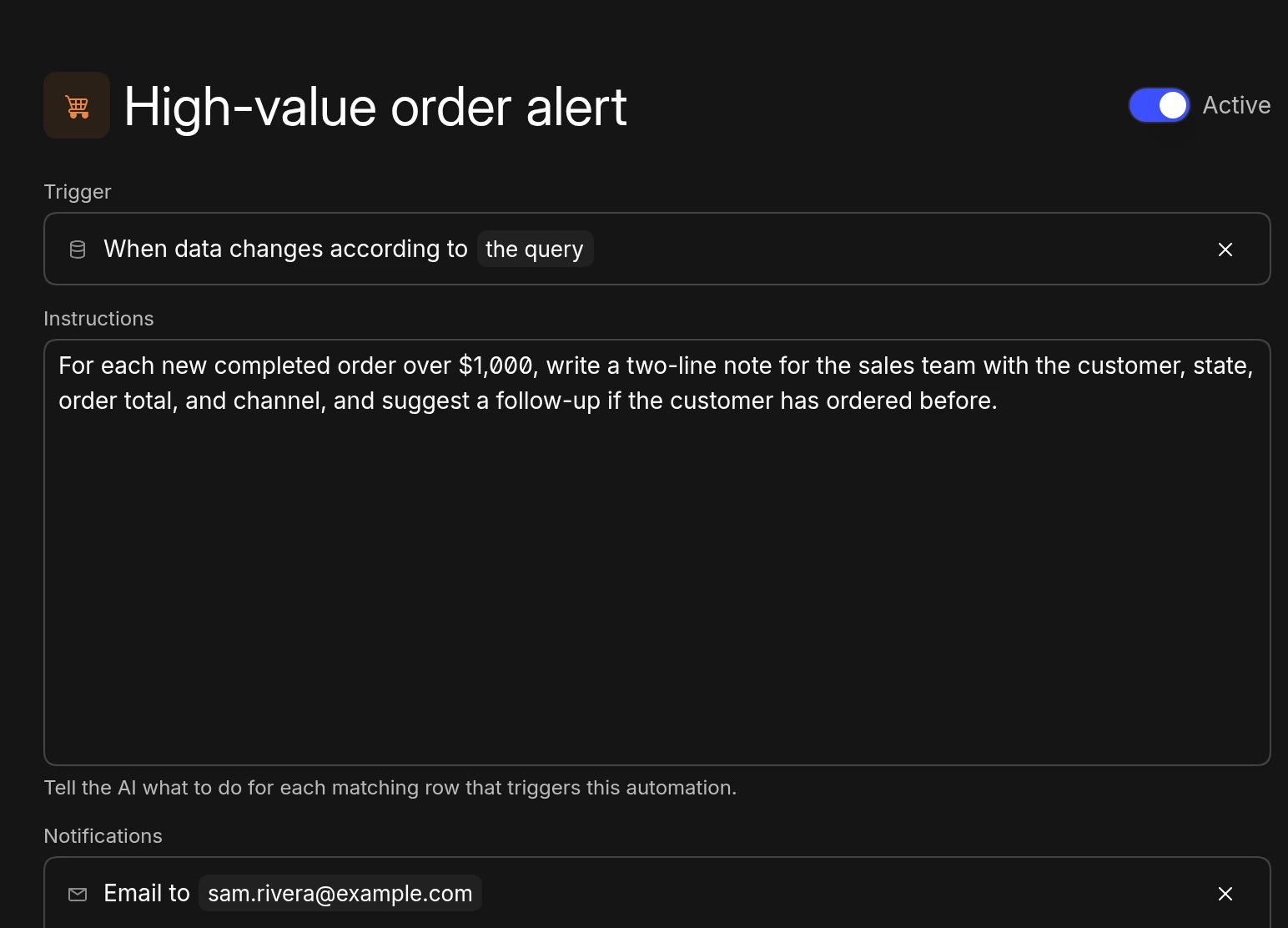
{{ last_run_at }} variable. It resolves to the last time the automation ran, or to when the automation was created if it hasn’t run yet. Basedash inserts it as a quoted timestamp, so use it without quotes. It’s the only variable available in data-change queries. For example:
Each check starts at most 5 runs. If the query returns more than 5 rows, the
extra rows are skipped, so write the query to return only the rows that need
attention. Data-change queries run with the access of the person who created
the automation.
Notifications
Click Add notification and choose where each run is delivered:- Email: send to one or more members of your organization.
- Slack: post to a channel. This requires the Slack app.
Run and review automations
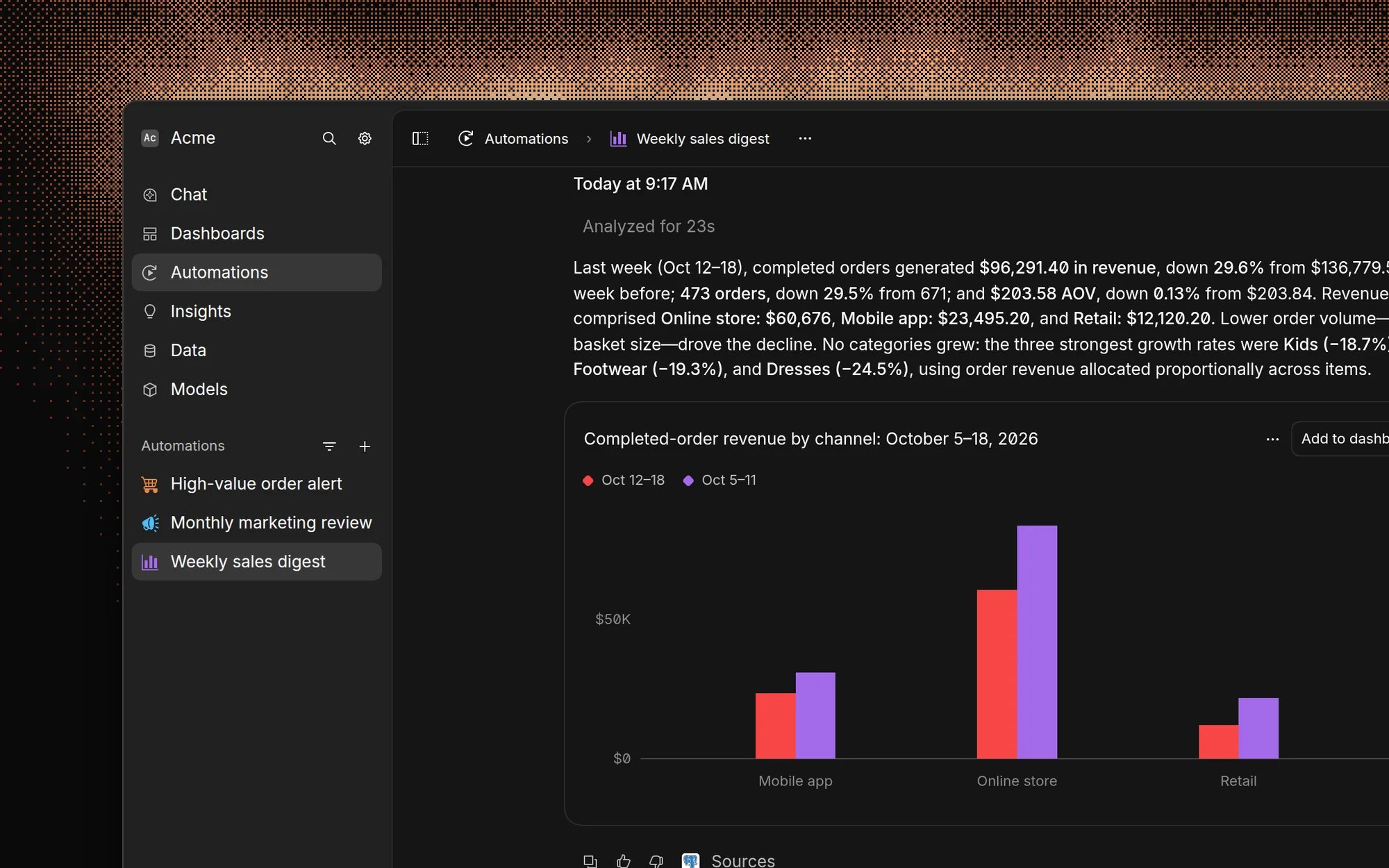
- Click Test run to run an automation now. The automation must be active and have instructions.
- Open an automation to see its runs, newest first, with the write-up, charts, and the queries behind each run.
- The Automations page shows recent runs from every automation you can access.
Permissions
An automation always runs with the data access of the member who created it, including their data source access and row-level security. Anyone who can edit the automation can change what it reports, so only give edit access to people you trust. Share an automation from its Share menu with everyone, groups, or specific members:
The creator and organization admins always have full access. Admins set the default access for new automations in Settings → Automations → Default access. Unless changed, new automations are shared with everyone at Can view.
Limits
- A run can take up to 100 AI steps, such as running a query or reading a model. - A scheduled run is skipped if the previous run is still in progress.
- Automations only use MCP tools set to always run. Tools that need approval aren’t available, because nobody is there to approve them. - Runs stop when the trial ends or your organization reaches its AI usage limit. Automations count toward AI usage.
Turn automations off
Admins can hide Automations for the whole organization by turning off Enable automations in Settings → Automations. This stops all scheduled, data-change, and manual runs.Automate with the API
The public API can create, update, and delete automations, manage access, list runs, and start a run. Data-change automations can’t be started from the API. API requests need an admin’s API key.FAQ
Is there a library of automation templates?
Is there a library of automation templates?
Not in the app. Use Suggestions on the Automations page for ideas based
on your data, or describe what you want and let the AI set it up. You can
find more examples on the Basedash
website.
Can I send an automation to someone outside my organization?
Can I send an automation to someone outside my organization?
The app only lets you choose members as email recipients. You can post to a
Slack channel that includes other people, or set email recipients with the
API.
What happens if the creator leaves the organization?
What happens if the creator leaves the organization?
The automation stops delivering, because it runs with the creator’s data
access. Recreate it under another member.
Why didn't my data-change automation run for every row?
Why didn't my data-change automation run for every row?
Each 15-minute check starts at most 5 runs. Narrow the query with
{{ last_run_at }} so it only returns rows that need attention.Can I restore a deleted automation?
Can I restore a deleted automation?
Yes, for 30 days. After that, it’s permanently deleted.