

Available on all plans. Editing a chart needs Can edit access to its
dashboard. View-only members can view charts, change filters, drill down, and
export data.
Overview
Every chart has a chart type, such as a line, bar, number, or table, and runs against one data source. Charts usually live on a dashboard. A chart that isn’t on a dashboard yet is a draft. Charts refresh with their dashboard and keep their SQL, so you can always see exactly where a number comes from.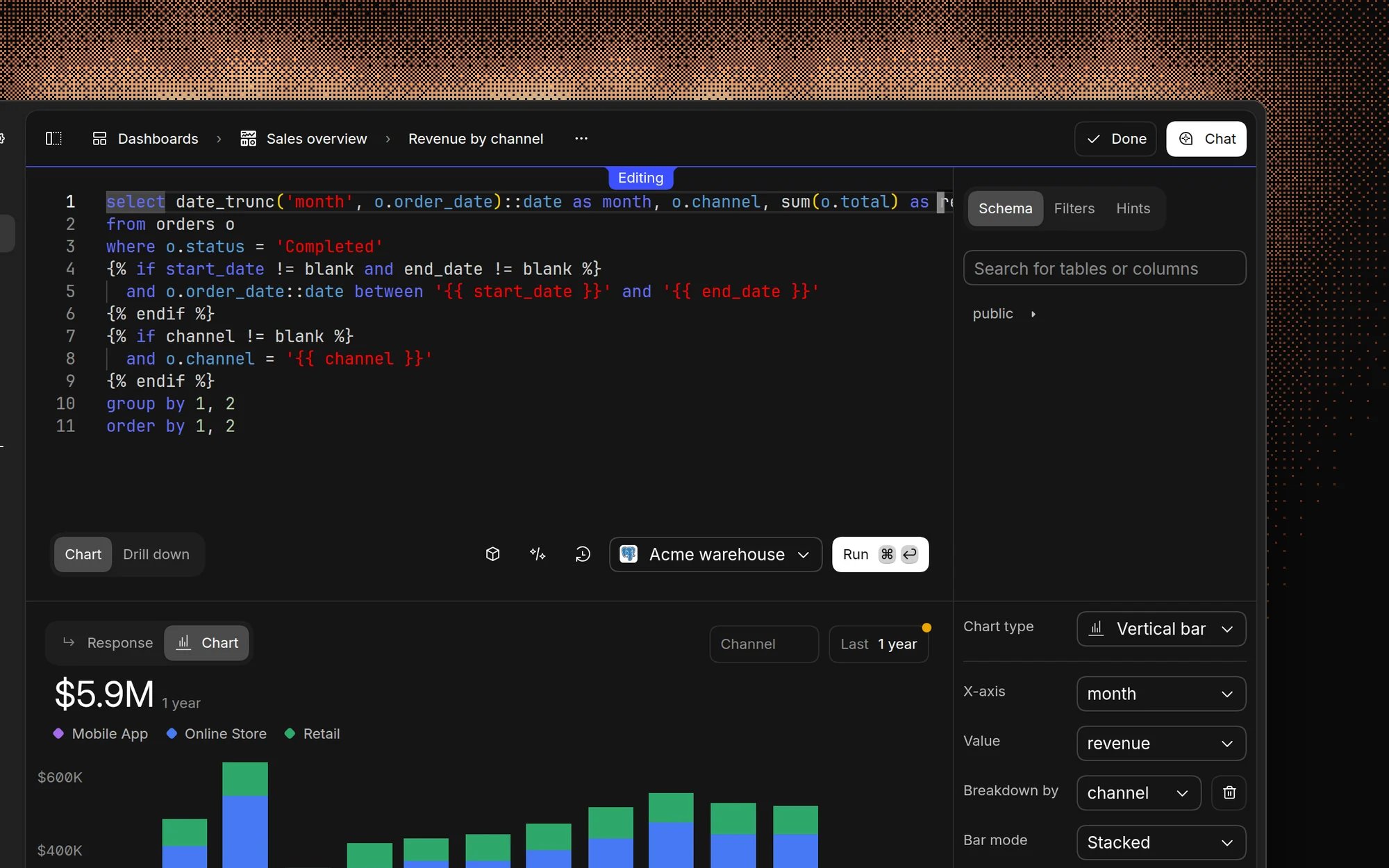
Create a chart
There are three ways to create a chart:- From chat. Ask a question in chat. When the answer includes a chart, click Add to dashboard.
- On a dashboard. Click New in the dashboard header and choose Chart. The dashboard’s AI chat opens: describe the chart, for example “Daily signups over the last 30 days, broken down by plan”.
- From the Charts page. Click Charts in the sidebar, then click Chart. This creates a draft and opens the chart editor, where you can write SQL yourself.
Edit with AI
On a dashboard, click a chart to add it to the dashboard chat as context, then describe the change, for example “Make this a stacked bar chart” or “Exclude internal accounts”. The AI updates the chart’s query and settings directly.Use the chart editor
Open a chart’s menu and choose SQL editor to open the chart editor. The editor has two panels:- The SQL editor at the top, with a sidebar for browsing the Schema, managing Filters, and setting query Hints.
- The preview at the bottom, with the results and the chart settings.
- Run the query and update the preview.
- Format query to tidy the SQL.
- Open History to see earlier versions of the query.
- Switch the data source the chart queries.
- Click Add source to join data from another data source. See Multi-source charts.
models.<reference_name>.
Customize a chart
The settings next to the preview depend on the chart type. Common settings include: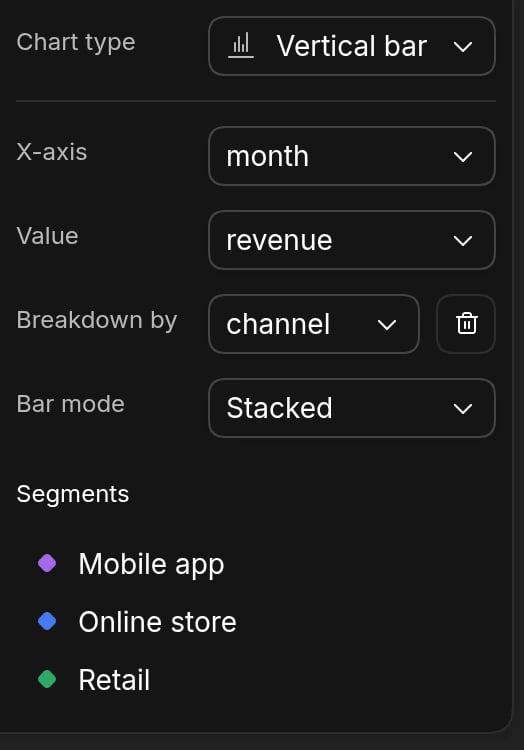
Drill down
Click a bar, point, or slice on a chart to open Records, which lists the rows behind that value. You can page through the rows and export them.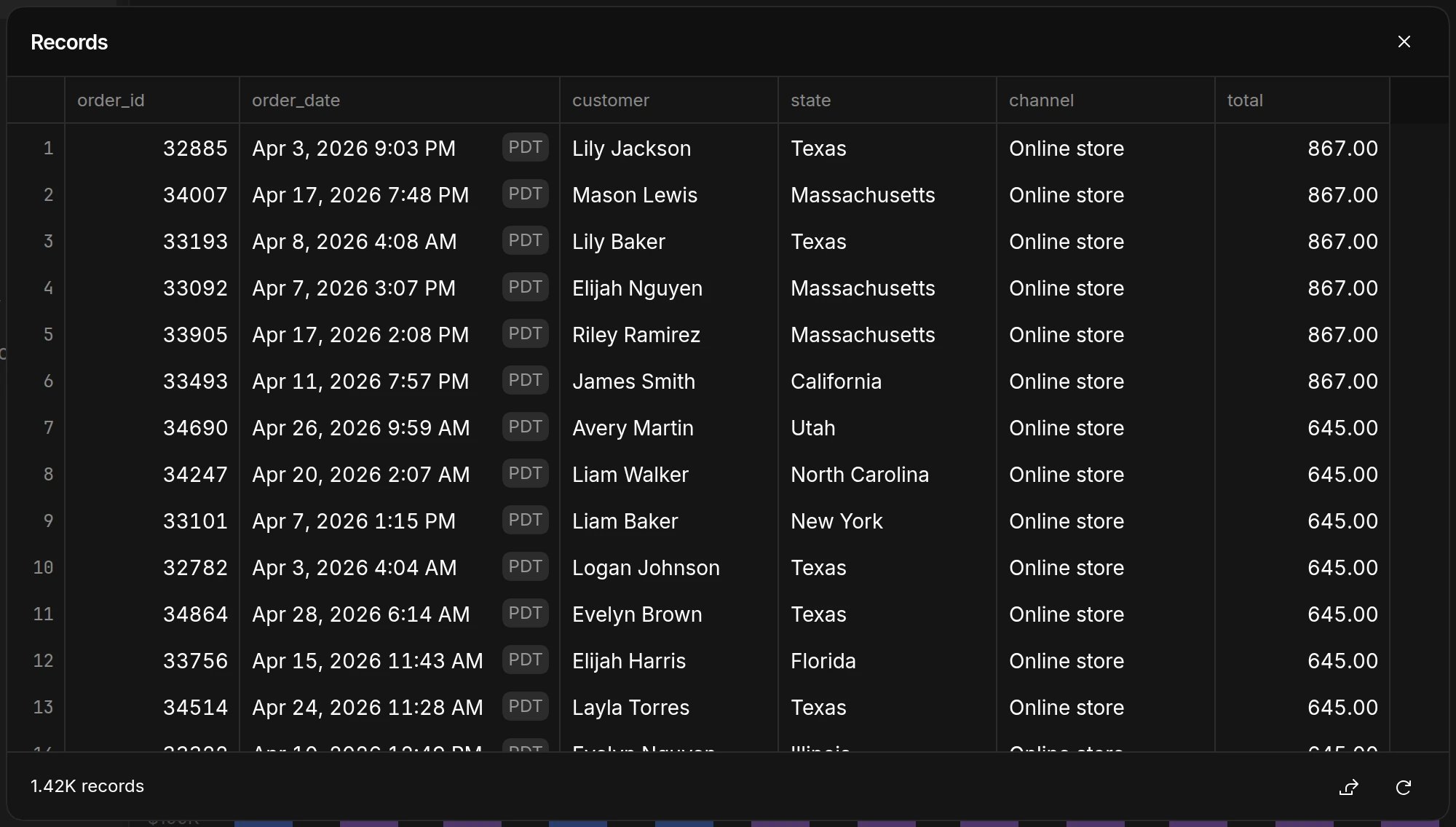
Restore an earlier query
Click History in the chart editor to see every earlier version of the query, with who changed it and whether the change came from AI. Select a version and click Revert to query to restore it.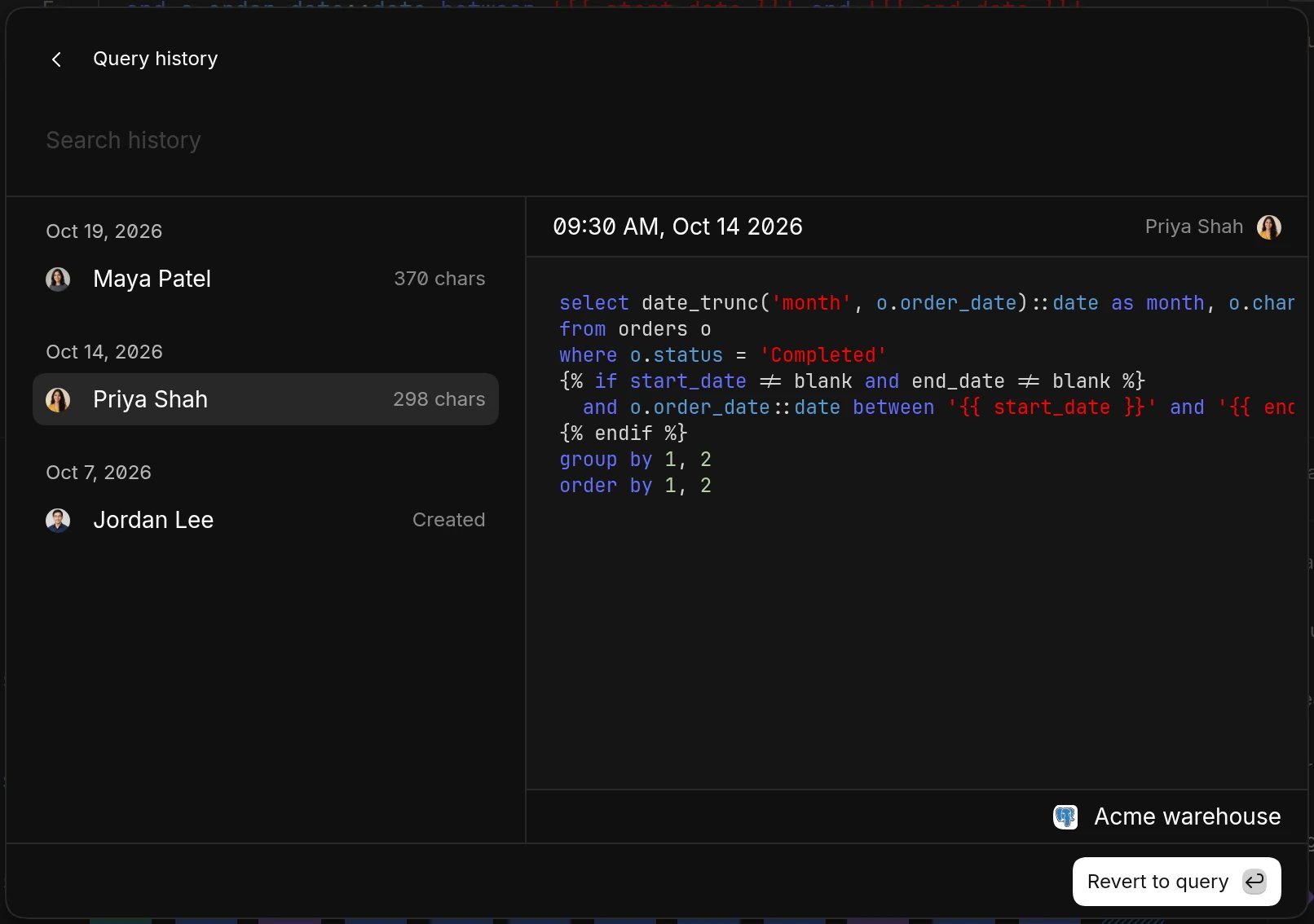
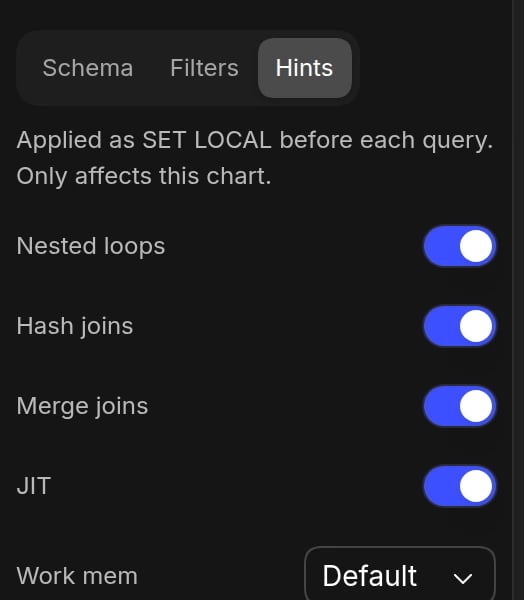
Query hints
Query hints are only available for PostgreSQL data sources and may not be
enabled for your organization yet.
Drafts
A draft is a chart that isn’t on a dashboard yet. Drafts are private to the person who created them. To find your drafts, open Charts in the sidebar and filter by Drafts. To move a draft onto a dashboard, open its menu and choose Move to.Manage charts
Open a chart’s menu to Rename, Duplicate, Move to another dashboard, Refresh data, Favorite, open it Full screen, or Delete it. Copy has options to copy a link, an image, the SQL, or the data. Deleted charts stay in Recently deleted on the Charts page for 30 days. Open a deleted chart and choose Restore to to put it back on a dashboard.Share and export
- Export a chart’s data as CSV, JSON, Excel, or Markdown, or copy it as an image. See Export and share.
- Share a chart to a Slack channel. See Share charts to Slack.
- Subscribe to get the chart by email or Slack on a schedule. See Subscriptions.
FAQ
Can a chart use data from more than one data source?
Can a chart use data from more than one data source?
Yes, with multi-source charts. Each source
runs its own query, and Basedash joins the results.
Why can't I edit a chart?
Why can't I edit a chart?
You need Can edit access to the chart’s dashboard, and your role can’t
be view-only. Ask someone with full access to share the dashboard with you.
Charts also can’t be edited from a phone.
Will the AI overwrite my SQL changes?
Will the AI overwrite my SQL changes?
The AI only changes a chart when you ask it to. If you edited the drilldown
query yourself, Basedash keeps it.
How do I make a chart load faster?
How do I make a chart load faster?
Filter or aggregate in the SQL so the query returns fewer rows, query a
model, or try query hints on Postgres.
Dashboards also cache results by default. See query
caching.