

Available on all plans. Admins and members can create dashboards. What each
person can do on a dashboard depends on how it’s
shared.
Overview
Use dashboards for the numbers your team checks regularly: a weekly KPI review, a sales pipeline, a support queue. For one-off questions, use chat, then save the useful charts to a dashboard. Dashboards can be shared with your organization, published as a public link, embedded in your own app, and delivered by email or Slack with subscriptions.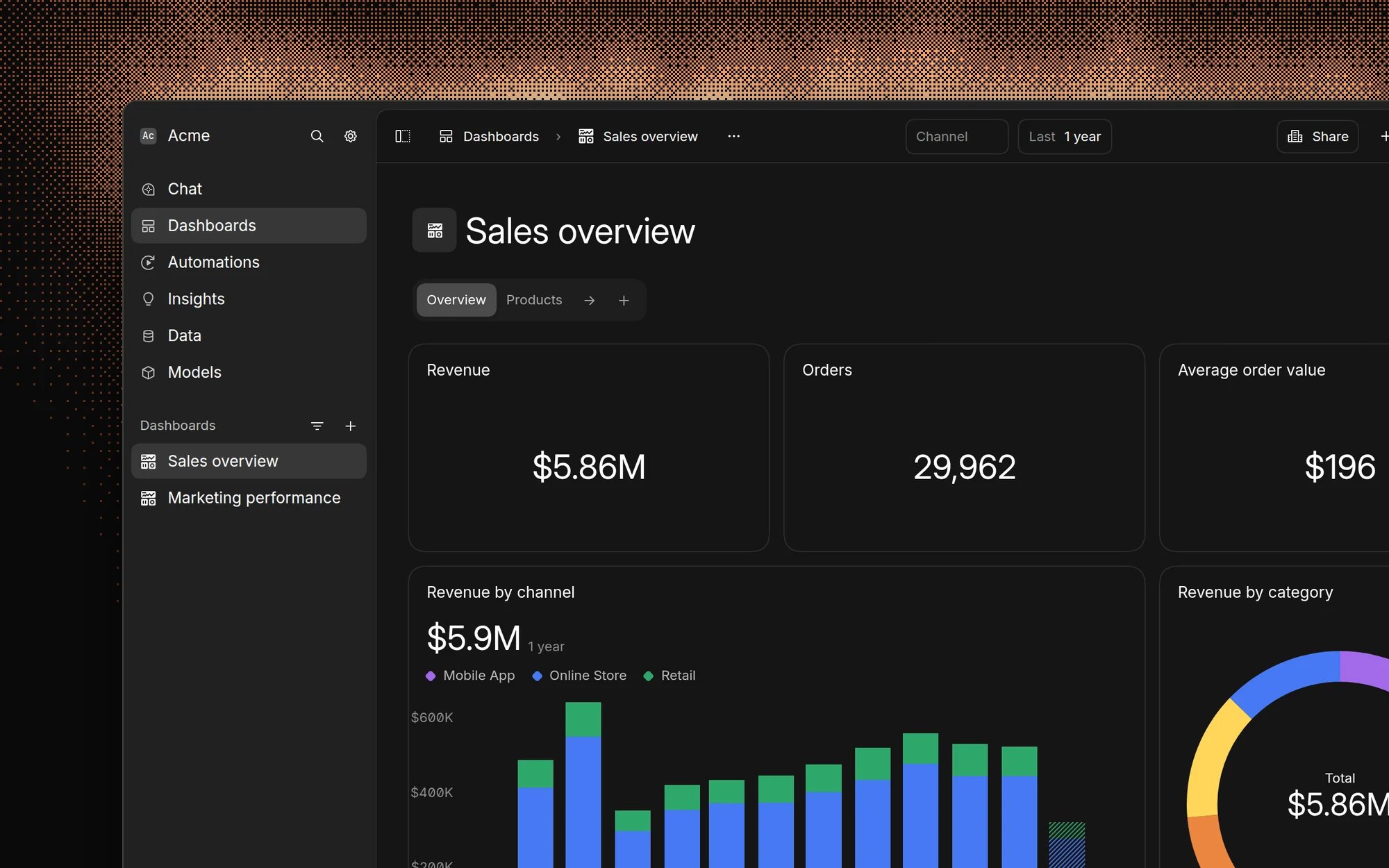
Create a dashboard
- Click Dashboards in the sidebar.
- Under What dashboard do you want to build?, describe it, for example “Build a sales dashboard with pipeline, win rate, and revenue by rep”.
- Press Enter. Basedash creates the dashboard, and its AI chat starts building the charts, queries, and layout.
Build with AI
Every dashboard has its own AI chat. Use it to add charts, change existing ones, or rework the layout:- Click New in the dashboard header and choose Chart, then describe the chart.
- Click a chart to add it to the chat as context, then describe the change, for example “Show this by week instead of by day”.
- Ask for bigger changes, such as “Add a tab for retention metrics”.
Arrange your dashboard
- Drag charts to move them, and drag their edges to resize them.
- Click New in the header to add a Chart, a Header, a Text block, a Filter, or a Tab.
- Use tabs to split a large dashboard into related views.
- Open the dashboard menu and choose Width to switch between Normal, Wide (twice as wide), and Ultrawide (three times as wide).
Folders
Admins can group dashboards into folders. Open a dashboard’s menu, go to Folders, and choose a folder or New folder. Choose No folder to move a dashboard back to the top level. A dashboard can inherit its folder’s access. See Folder access.Favorites
Open a dashboard’s menu and choose Favorite to keep it handy in the sidebar. You can favorite folders and charts too.Filters
Filters let viewers change what every chart on the dashboard shows, such as the date range, a customer, or a region. Basedash creates filters automatically when your prompts mention things like a time period or an entity, and you can add your own with New → Filter.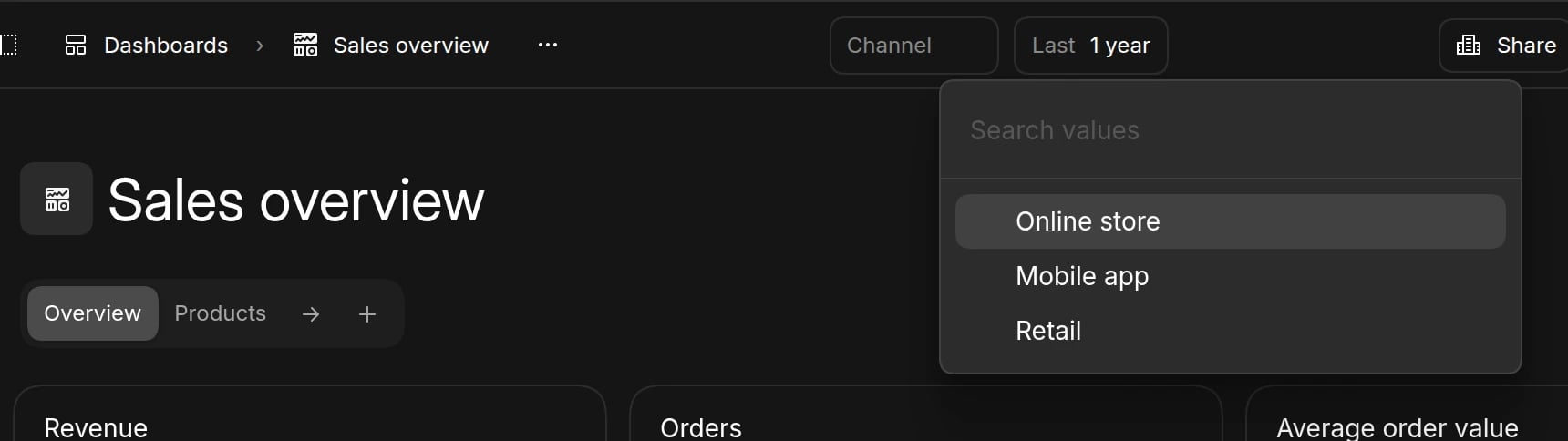
Refresh data
Dashboards refresh every 15 minutes while they’re open. People with edit access can change this in the dashboard menu under Refresh while viewing: every minute, 5 minutes, 15 minutes, hour, or 24 hours, or Only when opened. Nothing refreshes while a dashboard is closed. To refresh right away, choose Refresh data from the dashboard menu.Collaborate in real time
Avatars in the dashboard header show who else is on the dashboard. Hover over an avatar to see whether the person is online and which page they’re on.Sharing and collaboration
Click Share in the dashboard header to control who can open and edit it.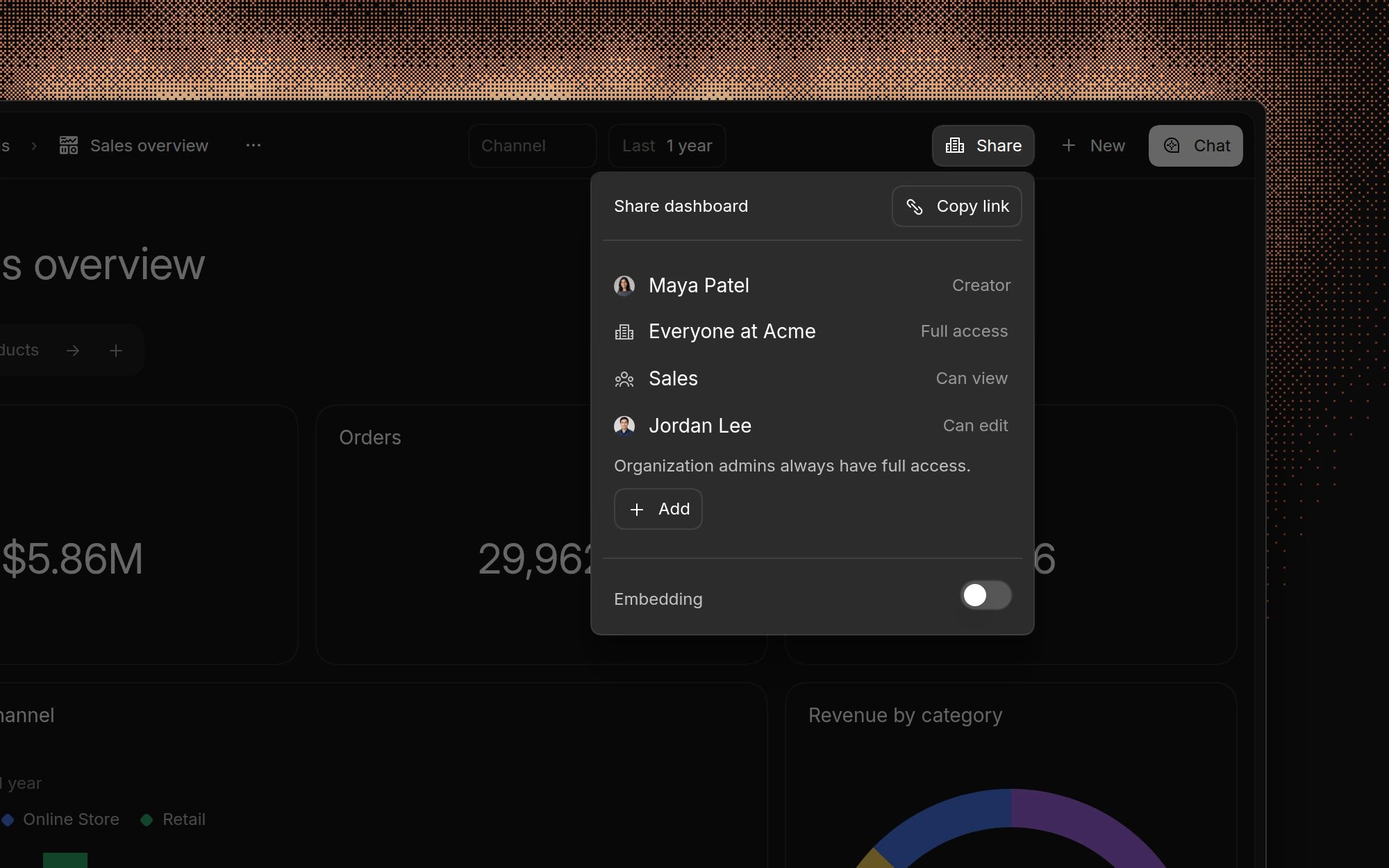
Permission levels
You can set access for everyone in the organization, for groups, and for specific members. When someone matches more than one rule, the most specific one wins: a member’s own access, then their groups, then everyone. The creator always has full access, and organization admins always have full access to every dashboard.
Folder access
Turn on Inherit folder access in the share menu to give a dashboard the same access as its folder. Turning it off copies the folder’s access onto the dashboard, so you can change it from there.Default dashboard access
Admins can choose the access that new dashboards start with in Settings → Dashboards → Default access.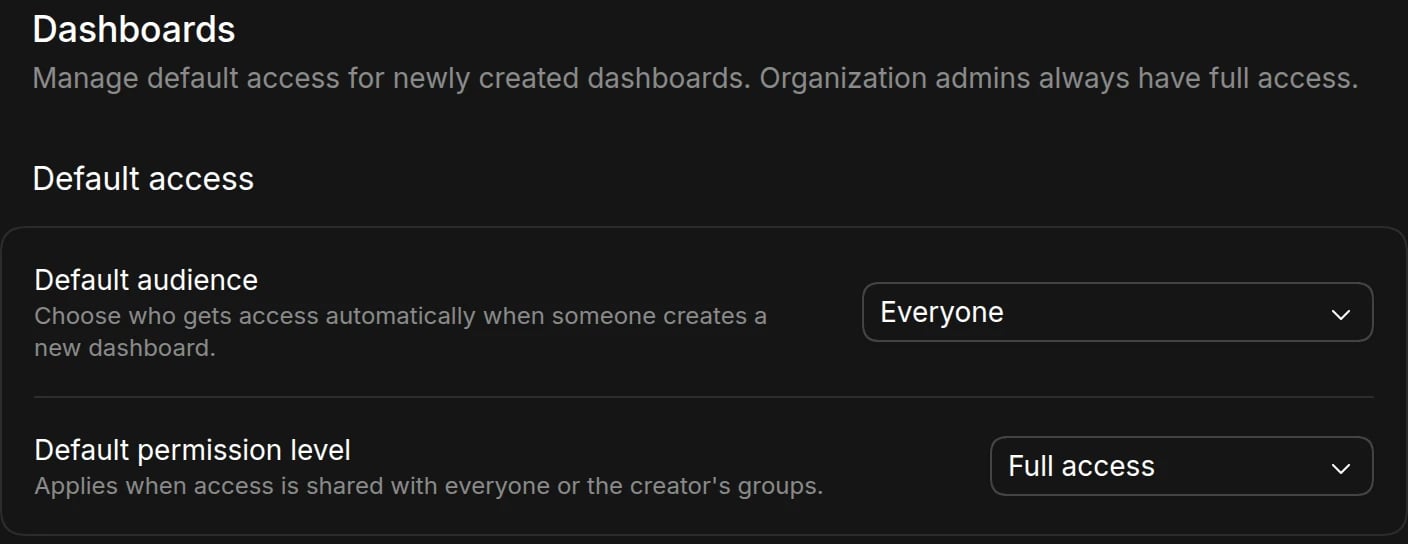
- Everyone: all members get access at the default permission level. This is the default.
- Creator only: only the creator has access. Everyone else must be added.
- Creator’s groups: members of the creator’s groups get access at the default permission level.
These settings only apply to dashboards created after the change. Existing
dashboards keep their access.
Public dashboards
To share a dashboard with people outside Basedash, turn on Embedding in the share menu. This creates a public, view-only link that doesn’t require a Basedash account. It needs full access to the dashboard.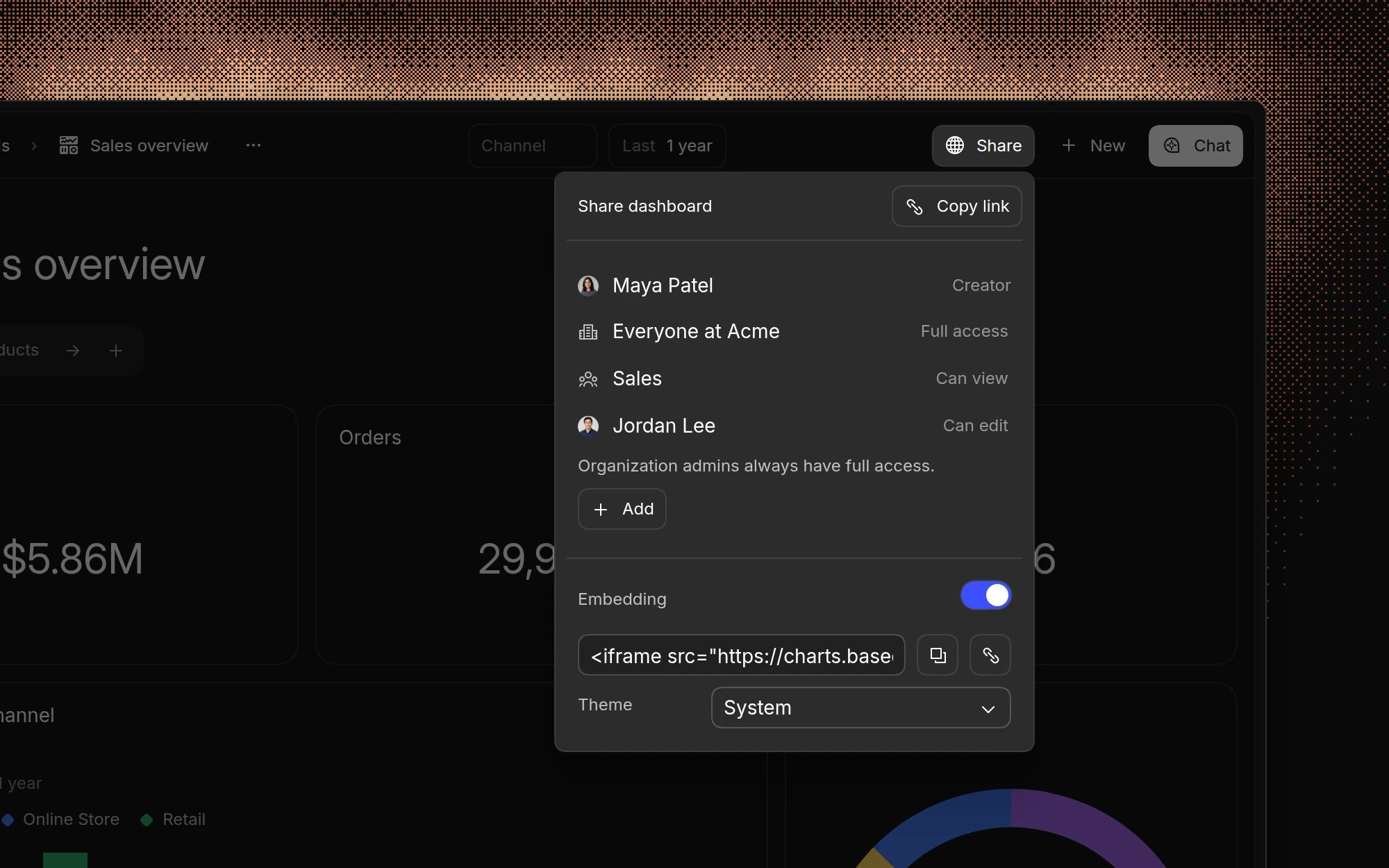
- Copy link or Open link.
- Copy code to embed the dashboard in a website with an iframe.
- Choose a theme: Light, Dark, or System.
- Reset link to stop the old link from working.
- Hide Basedash branding, if it’s available for your organization.
Export a dashboard
Open the dashboard menu and choose Export to PDF to download the whole dashboard as a PDF. To export a single chart’s data, see Export and share.Subscriptions
Get a dashboard delivered to email or Slack on a schedule. Open the dashboard menu and choose Subscribe. See Subscriptions.Duplicate, delete, and restore
- Choose Duplicate from the dashboard menu to copy a dashboard and its charts. This needs edit access.
- Deleting a dashboard needs full access. Deleted dashboards stay in Recently deleted for 30 days, and anyone with edit access can Restore them. After 30 days they’re permanently deleted.
FAQ
How many charts can a dashboard have?
How many charts can a dashboard have?
There’s no fixed limit, but every chart runs a query. If a dashboard gets
slow, split it into tabs or several dashboards.
Why does someone see different numbers than I do?
Why does someone see different numbers than I do?
Check whether either of you has changed a filter from its default; a dot
appears on filters that differ. Row-level
security and data source access
control can also show different
people different data.
Can I restrict a dashboard to one team?
Can I restrict a dashboard to one team?
Yes. In Share, set Everyone to No access and give the team’s
group access.
Is there a dashboard template gallery?
Is there a dashboard template gallery?
Not in the app. Suggestions on the Dashboards page offers ideas based on
your data, and you can find more examples on the Basedash
website.