

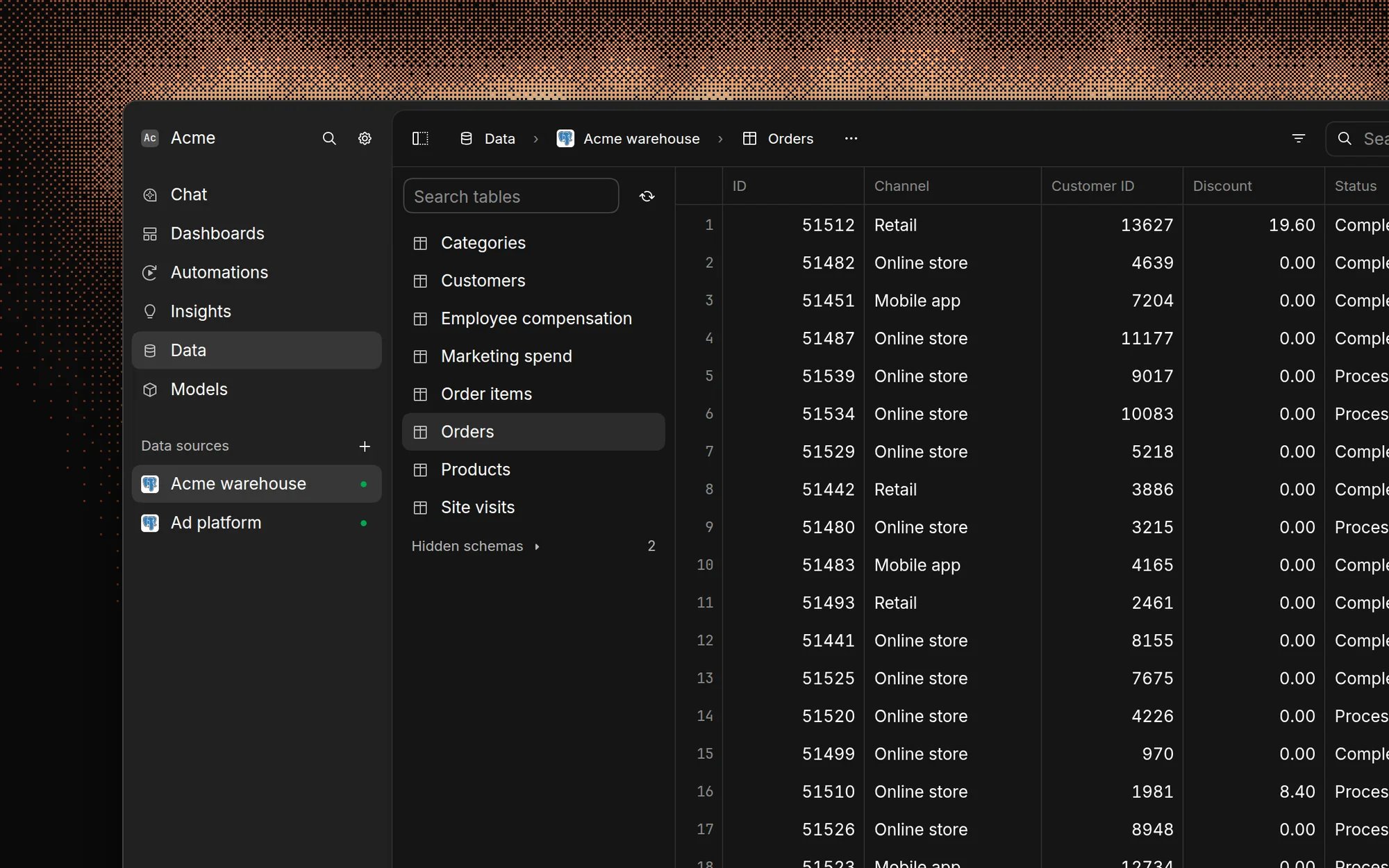
Features
Data browsing
- View any table in your database
- Automatic data type detection and formatting
Search and filter
- Full-text search across all columns
- Advanced filtering with multiple conditions
- Search history for quick access
Column management
- Reorder columns via drag and drop
- Hide/show columns
- Sort by multiple columns
- Pin columns to left
- Resize column widths
Data formatting
- Automatic formatting based on data types:
- Dates and timestamps
- Numbers and currencies
- URLs and email addresses
- JSON and arrays
- Boolean values
Best practices
-
Efficient browsing
- Use filters to narrow down data
- Pin frequently used columns
- Hide unused columns
-
Performance
- Start with filtered views for large tables
- Leverage quick filters for common queries
-
Organization
- Document special columns or data types
FAQ
Can I edit rows in a table?
Can I edit rows in a table?
No. Tables are read-only. To change data, edit it in your database, or ask
chat to propose a
change on a data source that supports approved writes.
Is the data live?
Is the data live?
Yes, tables query your data source when you open them and load 100 rows at a
time as you scroll. If query
caching is on, you may
see cached results first. Use Refresh data to query again.
Can I export a table?
Can I export a table?
Yes. Open Copy or export data in the table’s footer and export as CSV,
JSON, Excel, or Markdown. Exports keep your filters, sorting, and column
order, use fresh data, and include up to 1,000,000 rows.
Why don't I see a table or column?
Why don't I see a table or column?
If it’s new, click Sync schema at the top of the table list. It may also
be hidden, or an admin may have limited
your access. See
Troubleshooting.
Can view-only members browse tables?
Can view-only members browse tables?
No. The Data page and table exports are for admins and members.
View-only members can open charts and dashboards that are shared with them.