

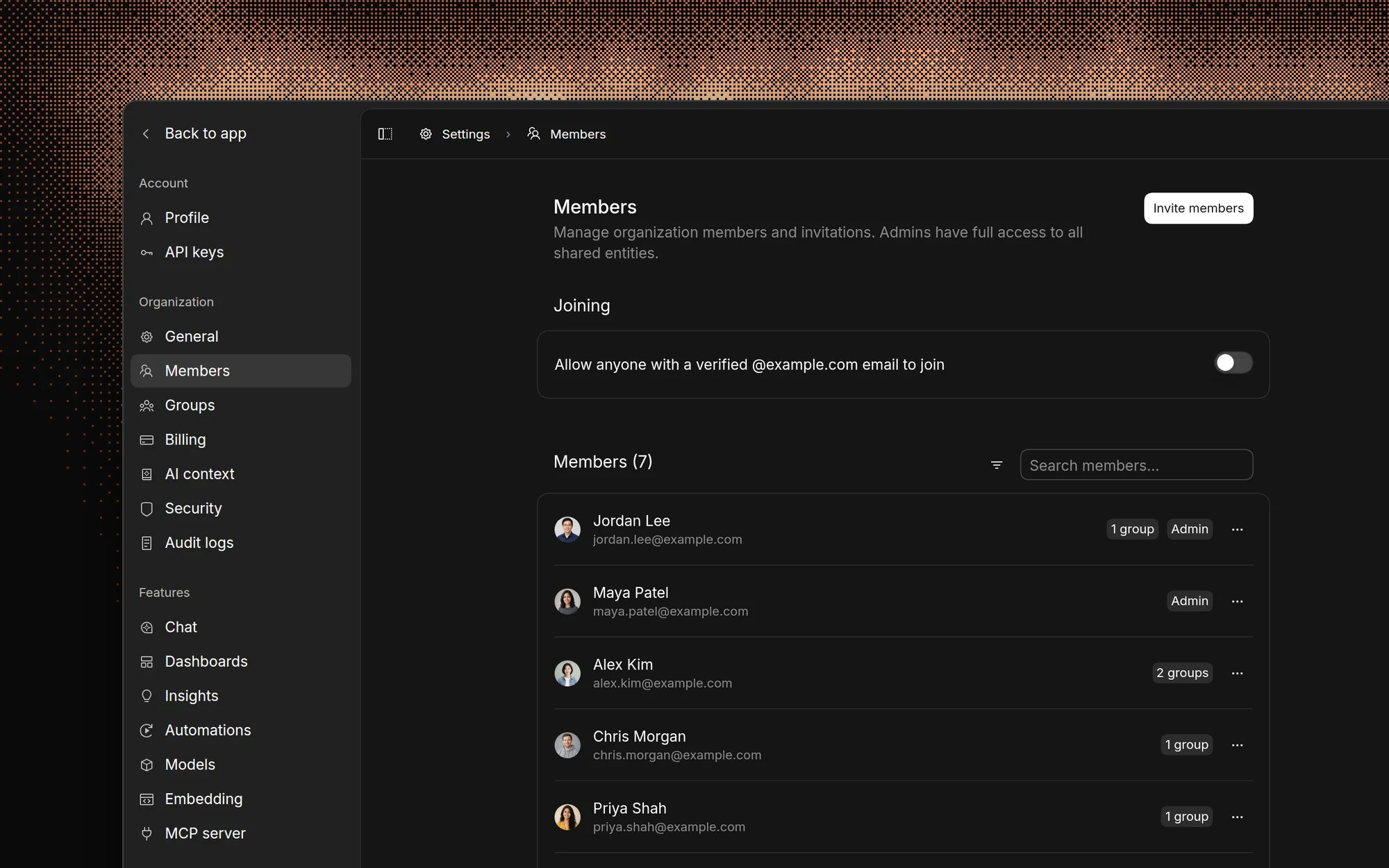
Inviting team members
- Open Settings → Members and click Invite members. You can also click Invite teammates in the sidebar.
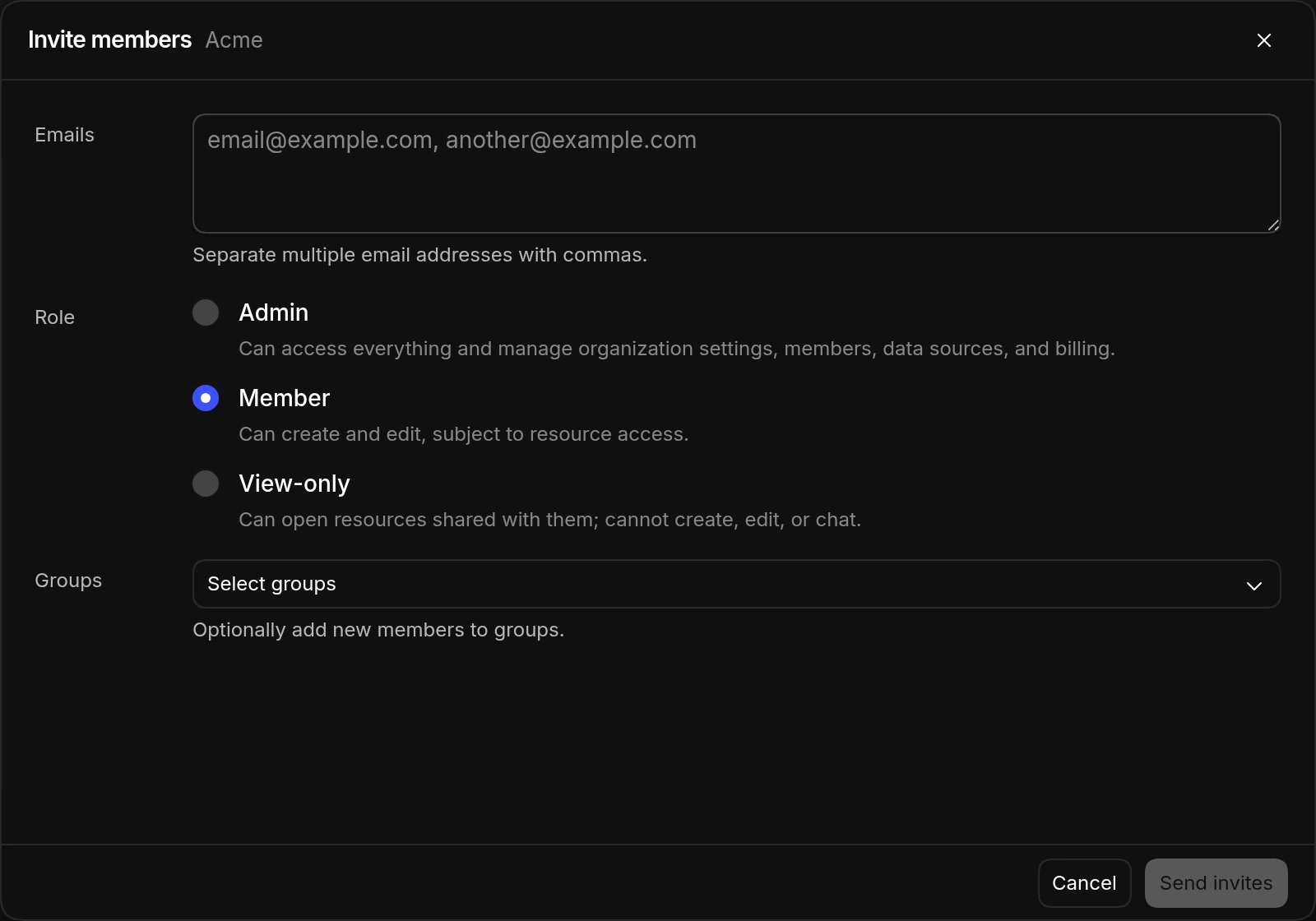
- Enter one or more email addresses, separated by commas.
- Choose a role, and optionally add the new members to groups.
- Click Send invites.
User roles
Every person in an organization is an Admin, a Member, or View-only:- Admins can access everything and manage organization settings, members, data sources, and billing.
- Members can create and edit dashboards, charts, automations, and models, and chat with AI, subject to what’s shared with them.
- View-only members can open what’s shared with them, but can’t create, edit, or chat.
Groups
Groups let you share dashboards, chats, and data sources with a whole team at once, and give the AI team-specific context. Admins manage groups in Settings → Groups. See Groups.FAQ
Do invitations expire?
Do invitations expire?
The sign-in link in the invite email works for 7 days. After that, the
person can still join by signing in with the email address you invited.
Until they sign in, they show as Invited on the Members page, and an
admin can Revoke invite.
Can members invite people, or only admins?
Can members invite people, or only admins?
Admins and members can both invite people. Only admins can invite someone as
an admin or add new members to groups.
Can I invite people outside my company's email domain?
Can I invite people outside my company's email domain?
Yes. You can invite any email address, such as a contractor’s or an
agency’s.
How many people can I invite?
How many people can I invite?
It depends on your plan. See Pricing for seats on
each plan.
Can I belong to more than one organization?
Can I belong to more than one organization?
Yes. Use the organization switcher to move between organizations or create a
new one. Your role and personal AI context are separate in each.