

Available on all plans. Admins and members can chat. View-only
members can read chats shared
with them but can’t ask questions.
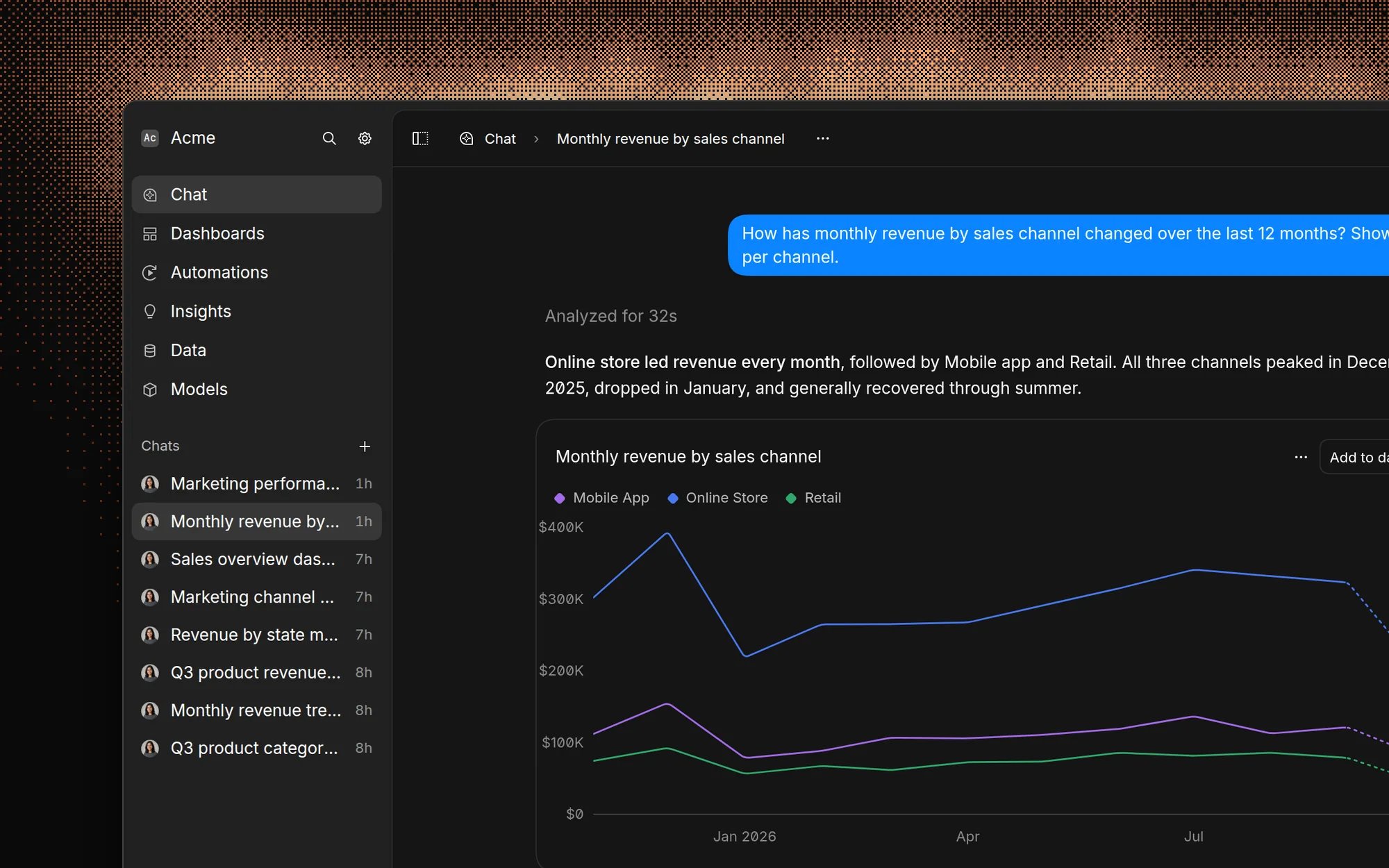
Overview
Use chat for questions you haven’t answered before, or when you want to explore a topic before building a dashboard. Each answer shows the queries the AI ran, so you can check how it got there. When an answer is worth keeping, add its chart to a dashboard. For questions you want answered on a schedule, use automations. Chat uses everything Basedash knows about your organization: the schema of each data source you can access, models, AI context, and skills. The better that context is, the better the answers get. See Accuracy and trust for how answers are generated and checked. You can also chat with Basedash from Slack, from AI tools through the MCP server, and from your phone with Basedash Mobile.Start a chat
- Click Chats in the sidebar, then click + to open a new chat.
- Type your question in the input under What questions do you have? and press Enter.
- Ask follow-up questions in the same chat. The AI keeps the earlier questions and answers in mind.
- “Show me weekly signups over the last 6 months, broken down by plan”
- “What are our top 10 customers by revenue this year?”
- “Which customers haven’t placed an order in the last 30 days?”
- “Why did churn go up in September?”
Read an answer
While the AI works, it shows what it’s doing, such as the query it’s running or the model it’s reading. When it finishes, the answer shows how long the analysis took, for example “Analyzed for 24s”. Open Sources under an answer to see each query the AI ran. For each query you can see the data source, the number of rows returned, a preview of the first rows, and the full SQL with a copy button.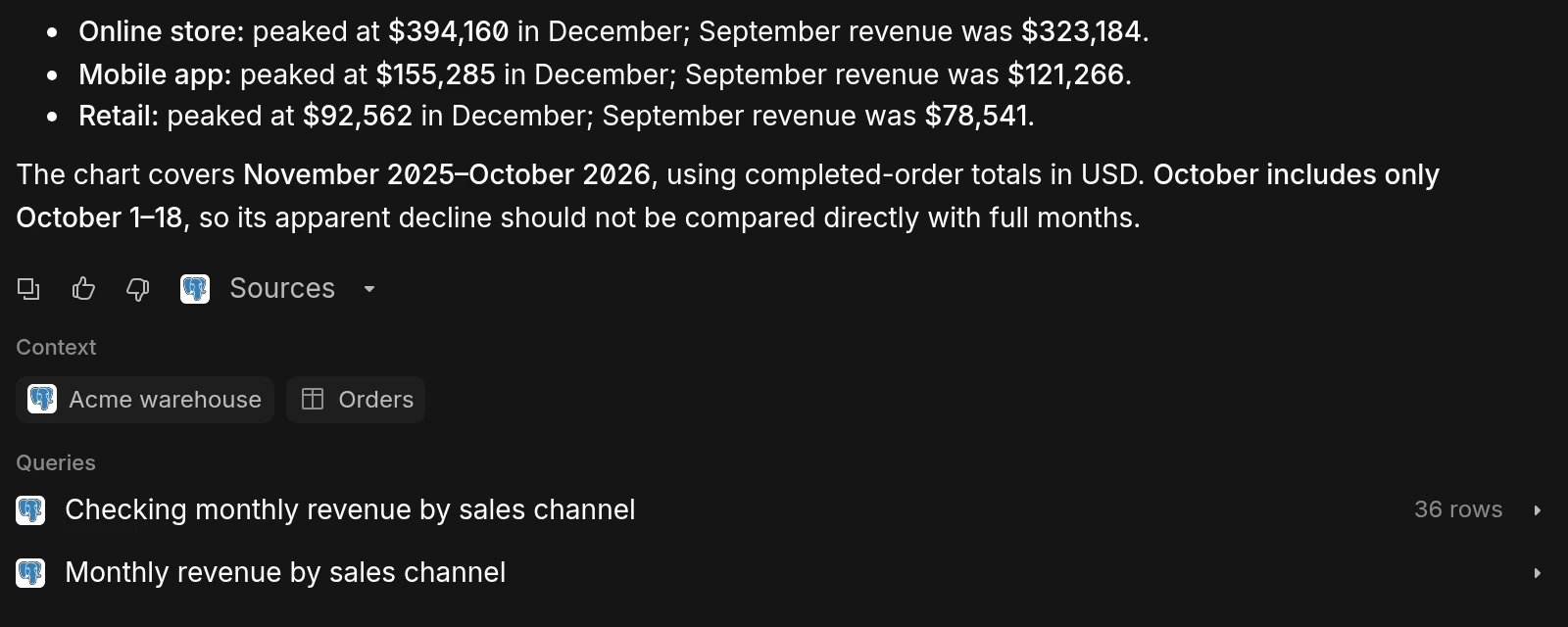
Attach files
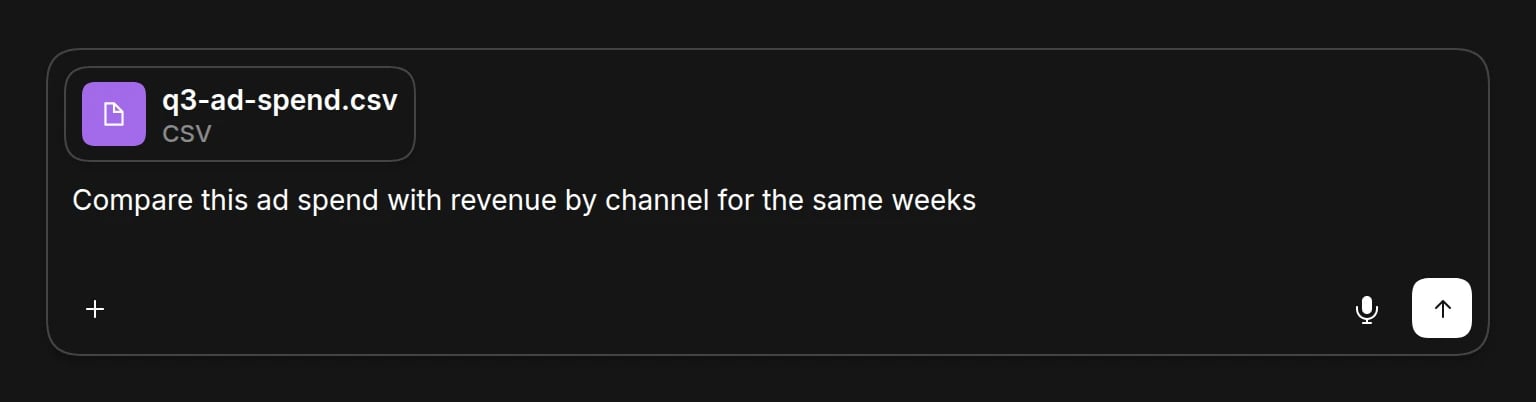
You can attach files to a question and ask the AI to analyze them alongside your data.- Click + in the chat input and choose Upload files. You can also drag files into the chat or paste them.
- Ask your question about the files.
Ask with your voice
Click Start voice recording in the chat input, speak your question, then click Finish voice recording. Basedash transcribes the recording into the input so you can review it before you send it. Recordings stop after 5 minutes.Save charts and build dashboards
When an answer includes a chart, click Add to dashboard and choose an existing dashboard, New dashboard, or Drafts. The chart keeps its SQL, so it stays up to date on the dashboard. The chart’s menu also lets you copy it as an image, copy its SQL, or export its data.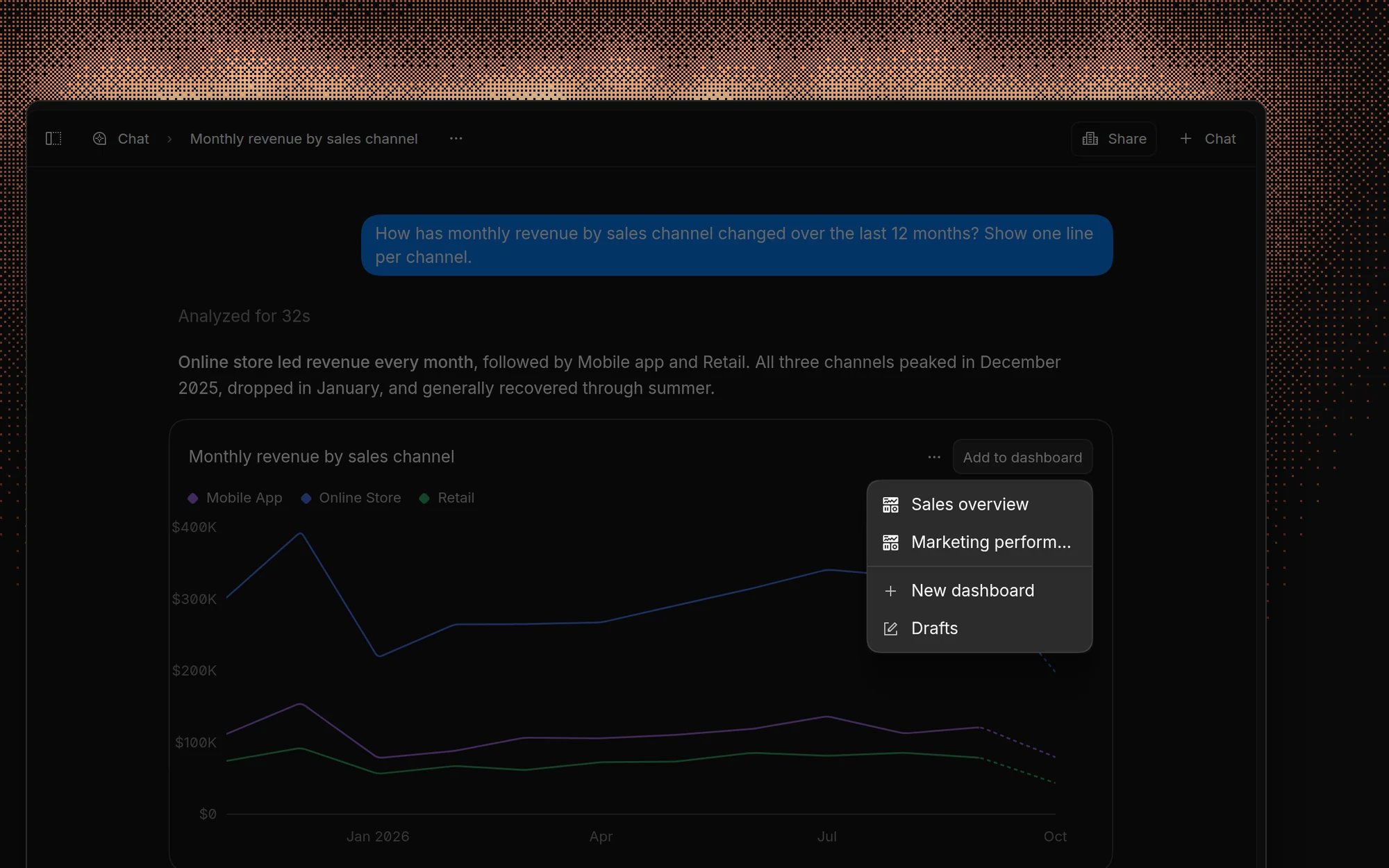
Download data as CSV
Ask for the data as a file, for example “Export all orders from last month as a CSV”. The AI runs the query and attaches a CSV that you can download from the chat.- CSV files can contain up to 1,000,000 rows. If the result is larger, the file is cut off and marked Row limit reached.
- The query runs with your data access, so the file only contains data you’re allowed to see.
- Download links expire after 30 days.
Approve actions
Some actions need your approval before the AI runs them. When that happens, the chat shows a card describing the action, with Approve and Deny buttons.- Tools from MCP connectors. Admins choose which MCP connector tools always run, need approval, or are blocked.
- Changes to your database. The AI can propose a single
INSERT,UPDATE, orDELETEstatement on Postgres, Redshift, and Supabase data sources where you have edit access. The card shows the SQL, and nothing runs until you click Approve and run.
Share a chat
Click Share in a chat to open Share chat. You can share with everyone in your organization, with groups, or with specific members.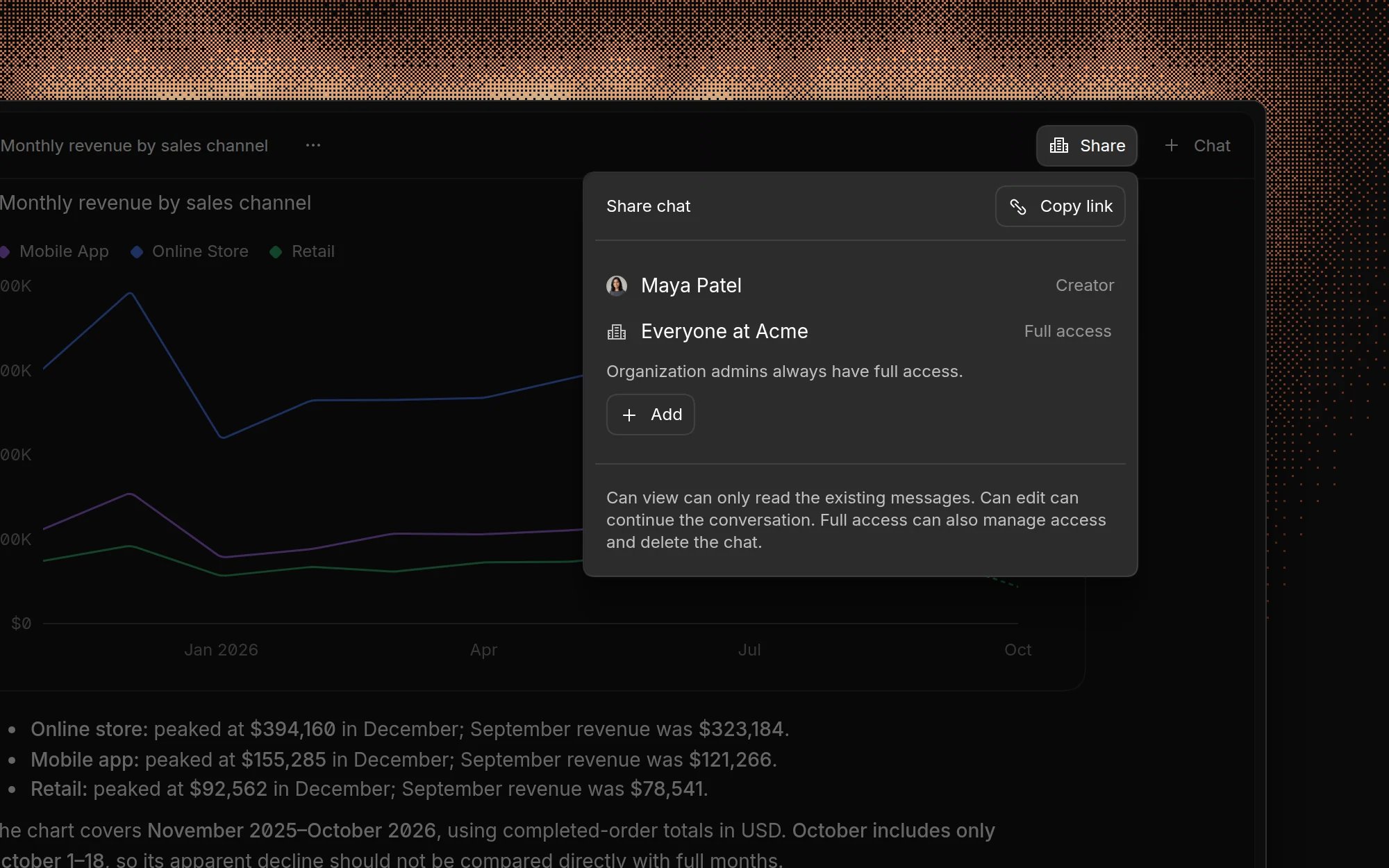
The creator of a chat always has full access, and organization admins always have full access to every chat.
Default chat access
By default, new chats are shared with everyone in the organization with full access. Admins can change this in Settings → Chat → Default access:- Default audience: Everyone, Creator only, or Creator’s groups.
- Default permission level: Full access, Can edit, or Can view.
Manage chats
Open a chat’s menu to Rename it, Favorite it, Copy link, or Delete it. Deleting needs full access, and deleted chats can’t be restored. Chats started from Slack appear in your chat list with a Slack badge. Chats started through the API or the MCP server don’t appear in the list.Limits
The AI can take up to 50 steps to answer one question, such as running a query
or reading a model. If it reaches the limit, it summarizes what it found and
lists what’s unfinished. In long chats, older messages are summarized so the
conversation can continue. The most recent messages are always kept in full.
FAQ
Can I see the SQL behind an answer?
Can I see the SQL behind an answer?
Yes. Open Sources under the answer to see every query the AI ran, with a
preview of the results and a button to copy the SQL.
Who can see my chats?
Who can see my chats?
It depends on your organization’s default chat
access. Unless an admin has changed it, new chats are
shared with everyone in the organization. Use Share to change access for
a specific chat.
Can I choose which AI model chat uses?
Can I choose which AI model chat uses?
No. Basedash picks and manages the models. Self-hosted deployments can
configure their own AI provider. See AI
configuration.
Why does chat say it can't find my data?
Why does chat say it can't find my data?
The AI can only query data sources you have access to. Ask an admin to check
your data source access, and
add AI context that explains where the data lives.
Does chat use AI credits?
Does chat use AI credits?
Yes. Chat counts toward your organization’s AI usage. See Billing and AI
usage.