

How filters work
Filters are dashboard-level controls that automatically add variables to your chart queries. When you reference entities or time periods in your prompts, Basedash intelligently creates the appropriate filters and injects them into your SQL queries.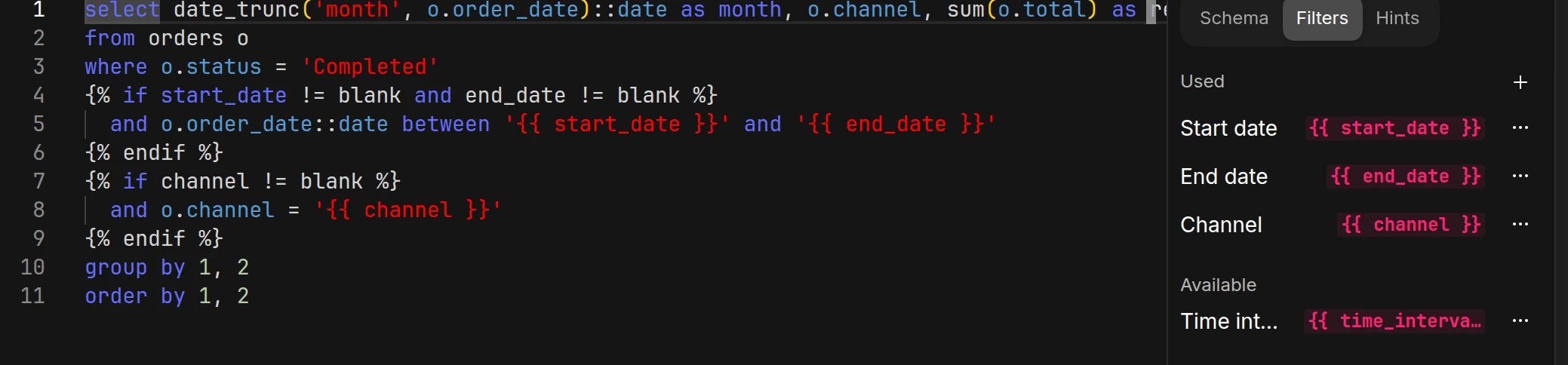
Automatic filter creation
Basedash automatically creates appropriate filter types when you use certain language patterns in your prompts:- Entity references: “Show me details for a user” → Creates a record filter
- Time references: “Revenue over time” → Creates date range filters
- Text searches: “Customers named John” → Creates text filters
- Numeric thresholds: “Orders over $100” → Creates number filters
- Boolean conditions: “Only active users” → Creates boolean filters
- Category selections: “Sales by region” → Creates list filters
Filter types
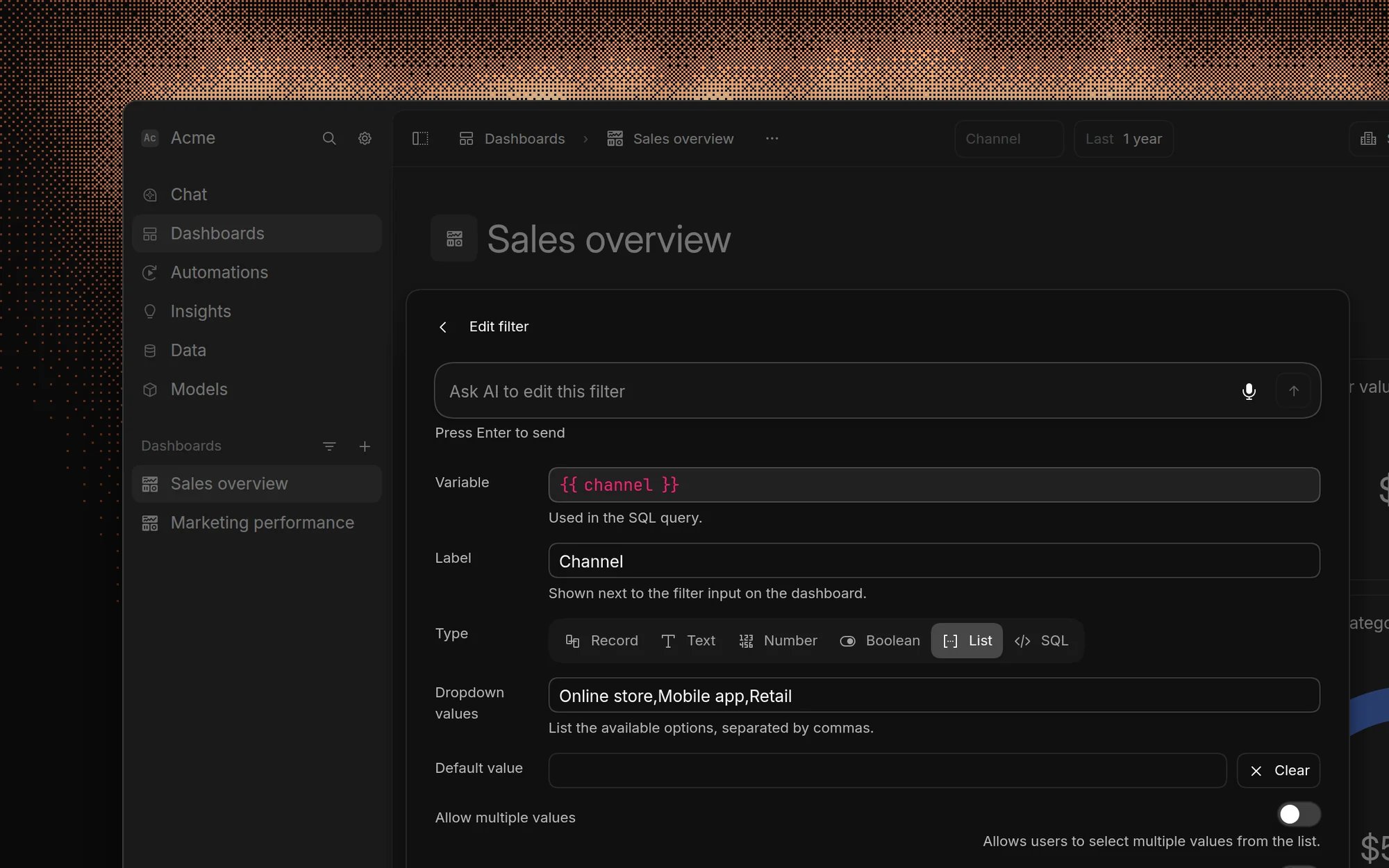
Basedash supports several filter types:- Text: Free-form text input for string matching and search
- Number: Numeric input for quantities, thresholds, and ranges
- Boolean: True/false toggle for binary conditions
- List: Dropdown selection from a predefined set of options
- Record: Dropdown selection populated from database records
- SQL: Custom SQL-based filtering for advanced logic
List filters
List filters let you define a static set of options for users to choose from. This is useful when you have a known set of values that don’t come from a database table, such as status categories, regions, or time periods. You can configure whether users can select a single value or multiple values.Record filters
Record filters automatically populate options from your database tables. When you create a record filter, Basedash queries the table and displays records in a searchable dropdown. This is ideal for entity-level dashboards where users need to select a specific customer, order, or user to view details about.SQL filters
SQL filters let you write custom SQL to generate the list of options. This gives you full control over the dropdown values, allowing you to join tables, apply conditions, or format display labels. Use SQL filters when the built-in list and record filters don’t provide enough flexibility.Built-in variables
Basedash provides built-in variables for time-based filtering. When your SQL references these variables, Basedash automatically shows the corresponding controls in the dashboard filter bar.Date range
The date range picker lets users select a time period. When they select a range like “Last 30 days”, Basedash calculates the actual dates and injects them into thestart_date and end_date variables.
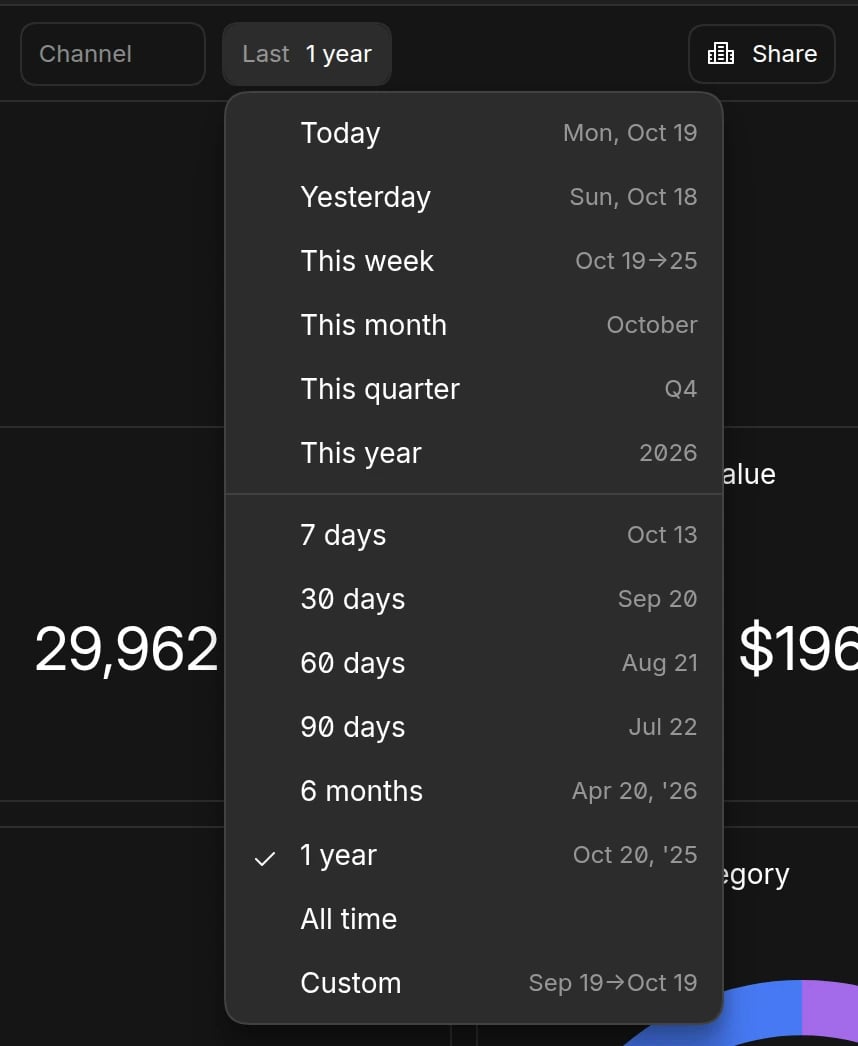
- Last N days:
LAST_7_DAYS,LAST_30_DAYS,LAST_60_DAYS,LAST_90_DAYS - Last N months:
LAST_6_MONTHS,LAST_1_YEAR - This period:
TODAY,YESTERDAY,THIS_WEEK,THIS_MONTH,THIS_QUARTER,THIS_YEAR - All time:
ALL_TIME - Custom: User-specified start and end dates
start_dateresolves to2024-12-16end_dateresolves to2025-01-15
Time interval
The time interval selector controls how data is grouped in time-series charts. Charts automatically use this value when grouping by date. Available options:HOUR, DAY, WEEK, MONTH, YEAR
Example usage
Filter configuration options
Multiple values
Enable “Allow multiple values” to let users select multiple options from list and record filters.Public dashboard visibility
Filters are hidden by default on public dashboards. To show a filter, edit the filter and enable the “Show on public dashboard” option. Hidden filters still apply their default values to queries—they’re just not visible or editable by viewers. See embedding for more details on filter visibility and security considerations.Default values
Set default values for filters to provide starting points for user interactions.Accessing and managing filters
You can view and manage dashboard variables from the dashboard filter controls. These controls show variables with their current values and allow you to modify configurations.Applying filters to other charts
When multiple charts use a variable with the same name, they share a single filter control. Changing the filter value updates all charts that reference that variable, creating cohesive analysis experiences across the dashboard.To apply an existing filter to another chart, tell the AI to update the chart.
For example: “Update this chart to use the same date range as the revenue
chart” or “Apply the user filter from the activity chart to this chart.”
Best practices
Use open-ended language
Instead of specific time periods, use open-ended language to leverage filters: Good:Reference other charts
Since Basedash AI understands your entire dashboard, you can reference other charts:Leverage entity context
For entity-level dashboards, use entity-specific language:FAQ
Can one filter control charts from different data sources?
Can one filter control charts from different data sources?
Yes. Filters belong to the dashboard, not to a data source. Every chart on
the dashboard whose SQL uses the same variable name, like
{{ region }},
gets the filter’s value, whichever data source it queries.How do I change a dashboard's default date range?
How do I change a dashboard's default date range?
Dashboards start on the last 30 days, grouped by day. Pick a different range
or interval, click the dot that appears next to the filter, and choose
Save as default. The new default applies to everyone who opens the
dashboard. Choose Reset to default to go back to it.
What happens when a filter is left empty?
What happens when a filter is left empty?
The variable becomes an empty string, not “all values”. To skip a condition
when a filter is empty, wrap it in a Liquid guard:Charts the AI writes already use this pattern.
Can clicking a chart filter the rest of the dashboard?
Can clicking a chart filter the rest of the dashboard?
No, Basedash doesn’t have cross-filtering. Clicking part of a chart opens
the records behind it instead. To filter several charts at once, use a
shared dashboard filter.
Do “This quarter” and “This year” follow our fiscal year?
Do “This quarter” and “This year” follow our fiscal year?
Yes, if an admin sets a fiscal year start date in organization
settings. The options
then show as Fiscal quarter and Fiscal year.
Related features
- Embedding - Embed dashboards or the full app
- Dashboards - Organize charts with shared filters
- Custom context - Add business context to improve AI understanding