

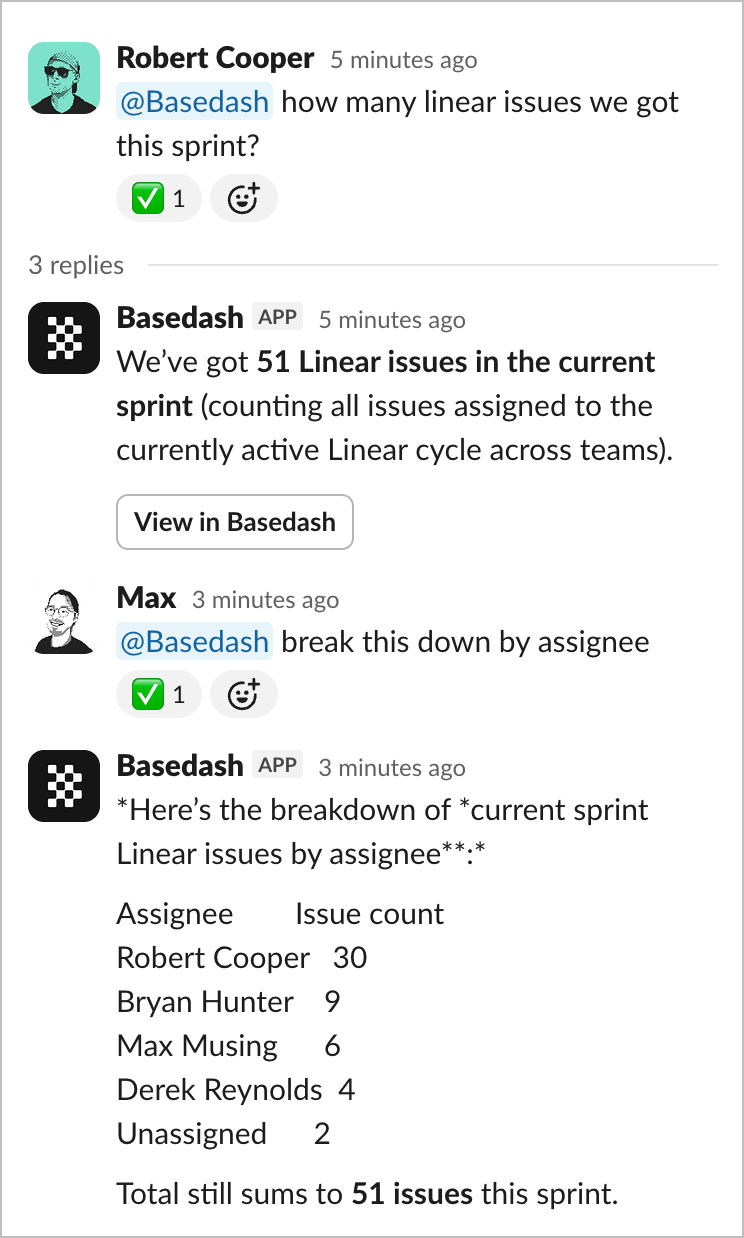
@Basedash, get answers back with charts embedded as images, share charts to channels, and receive automation and insight notifications without leaving Slack.
The Basedash app is available in the official Slack Marketplace.
Getting started
There are two ways to install the Basedash app for Slack:- From the Slack Marketplace: Find Basedash in the Slack Marketplace and select “Add to Slack”.
- From Basedash: Open the command menu (Cmd/Ctrl K), go to Settings, and select “Install Slack app”. A popup will open to request permissions.
The Basedash agent in the Slack app container requires a paid Slack plan.
@mentions, chart sharing, automations, and insights still work on free Slack
plans.
Ask questions with @Basedash
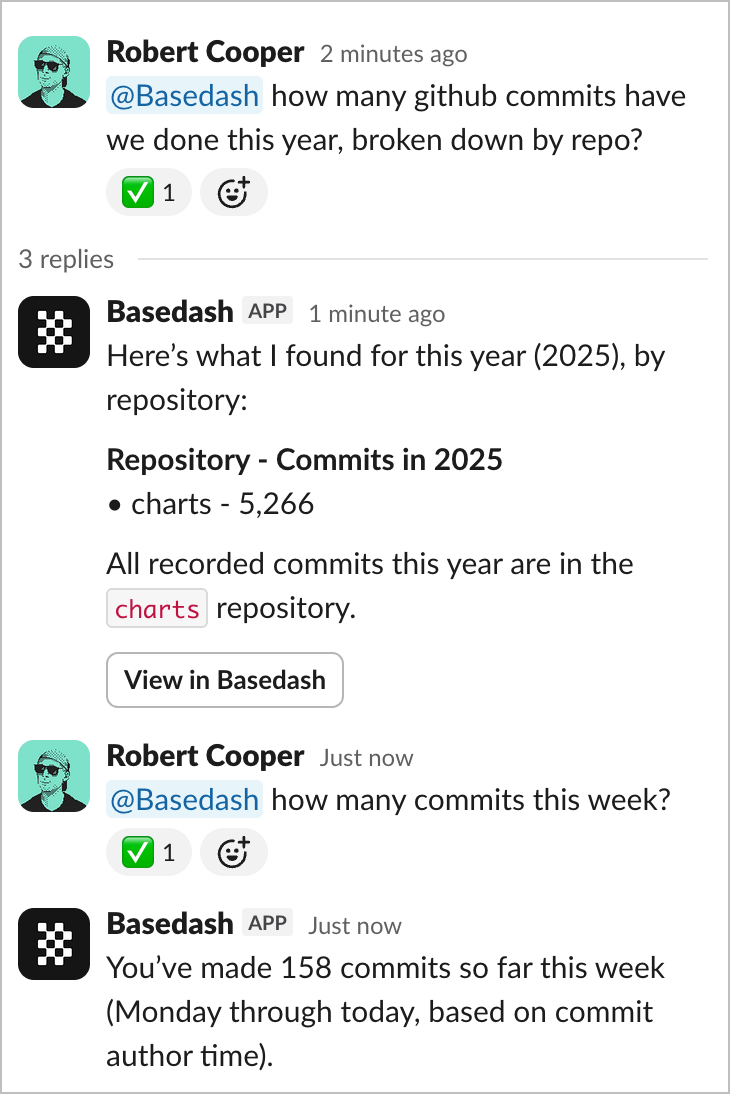
@Basedash in any channel or direct message to ask questions about your data in natural language. The AI will query your connected databases and respond with the answer directly in Slack. While it works, Slack shows the app’s native thinking status, so you can see that Basedash is on it from the moment you send the message.
If your organization uses row-level
security, it
applies to all Slack queries based on the user’s Basedash account.
Example questions
- “@Basedash how many users signed up this week?”
- “@Basedash show me our top 10 customers by revenue”
- “@Basedash what’s our conversion rate for the last month?”
- “@Basedash compare sales this quarter vs last quarter”
Charts in replies
When a visualization helps answer your question, Basedash replies with a chart embedded directly in the thread as an image — ask a trend question and you get the trend, not just a sentence about it. Each chart includes a link back to Basedash so you can open the live version, iterate on it, or add it to a dashboard.Thread conversations
Ask follow-up questions in a thread to refine your results or dig deeper into the data. Basedash maintains context throughout the thread, so you can have a natural conversation about your metrics without repeating yourself. For example:- Start with: “@Basedash show me monthly revenue for this year”
- Follow up with: “@Basedash break that down by region”
- Then: “@Basedash which region has the highest growth rate?”
Two-way message sync
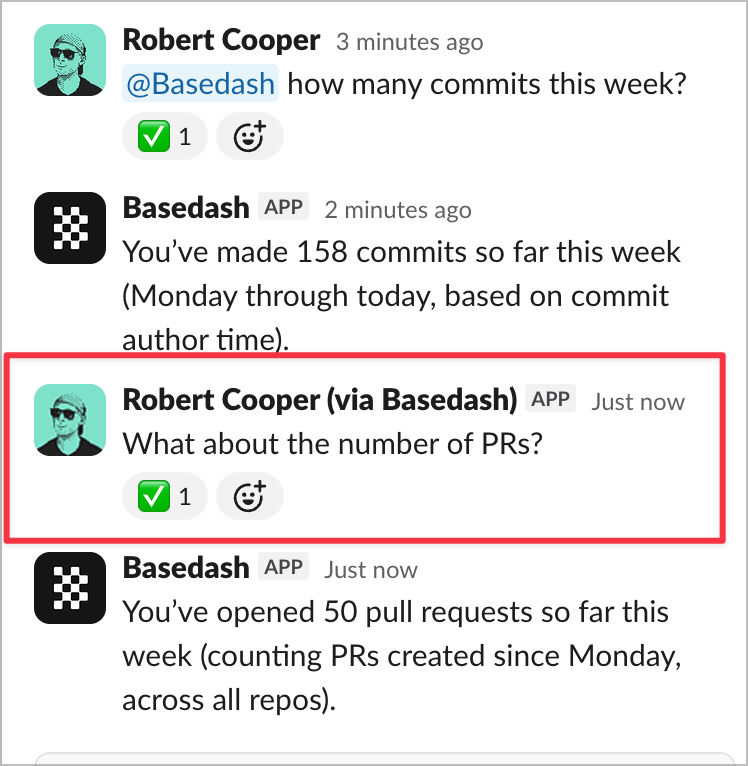
Image support
You can attach images to your messages when asking questions. This is useful for sharing screenshots of charts or data that you want Basedash to analyze or reference.User matching
Basedash automatically matches Slack users to their Basedash accounts using email addresses. This enables features like row-level security to work correctly, ensuring users only see data they have permission to access—even when asking questions in Slack.Share charts to Slack
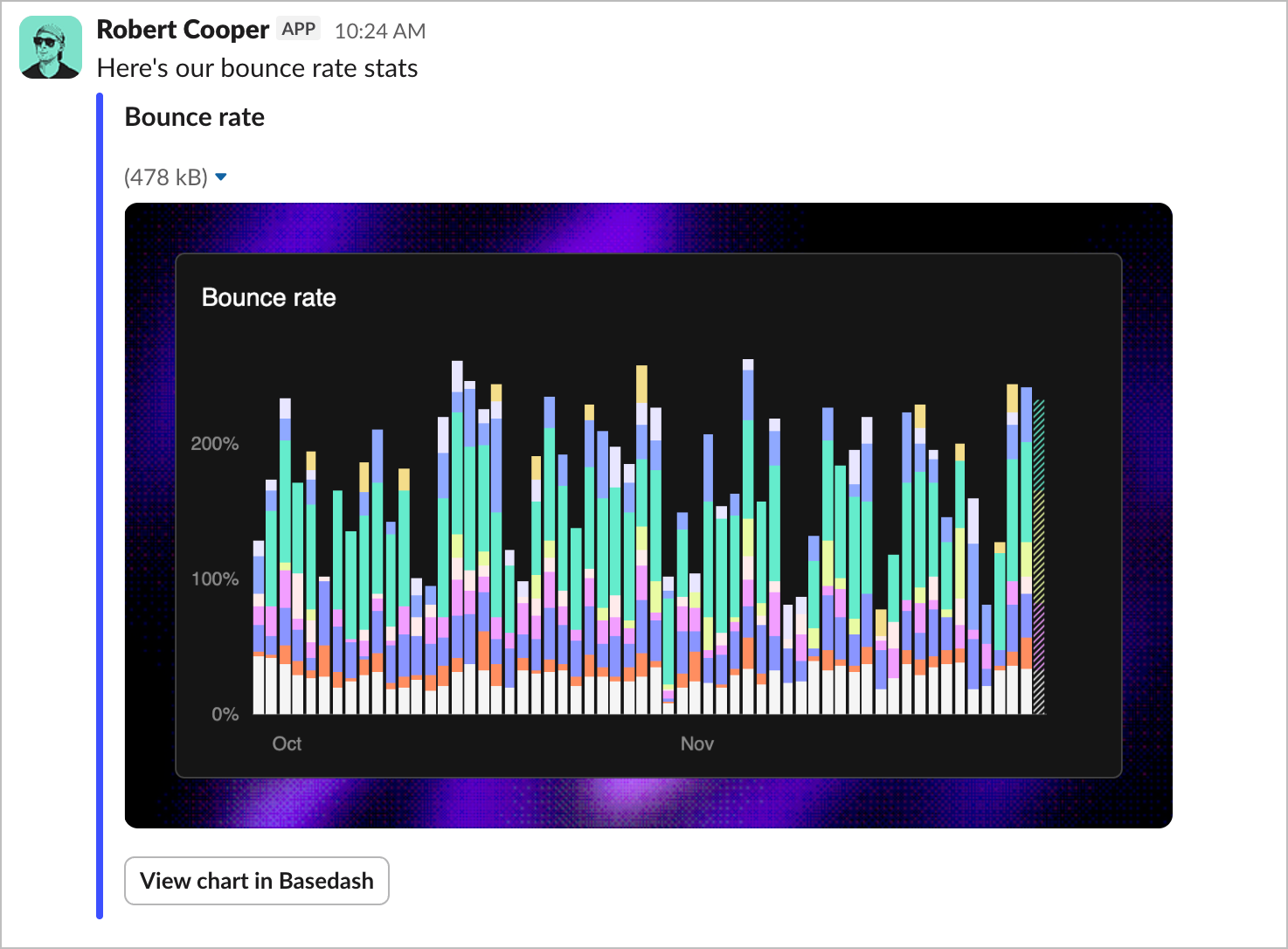
- Open the chart you want to share in Basedash
- Use the share menu to select Slack
- Choose the channel and optionally add a note
- Click share to post the chart
To send charts to private channels, you’ll need to invite the bot to the
channel first by typing
/invite @Basedash in that channel.Automation notifications
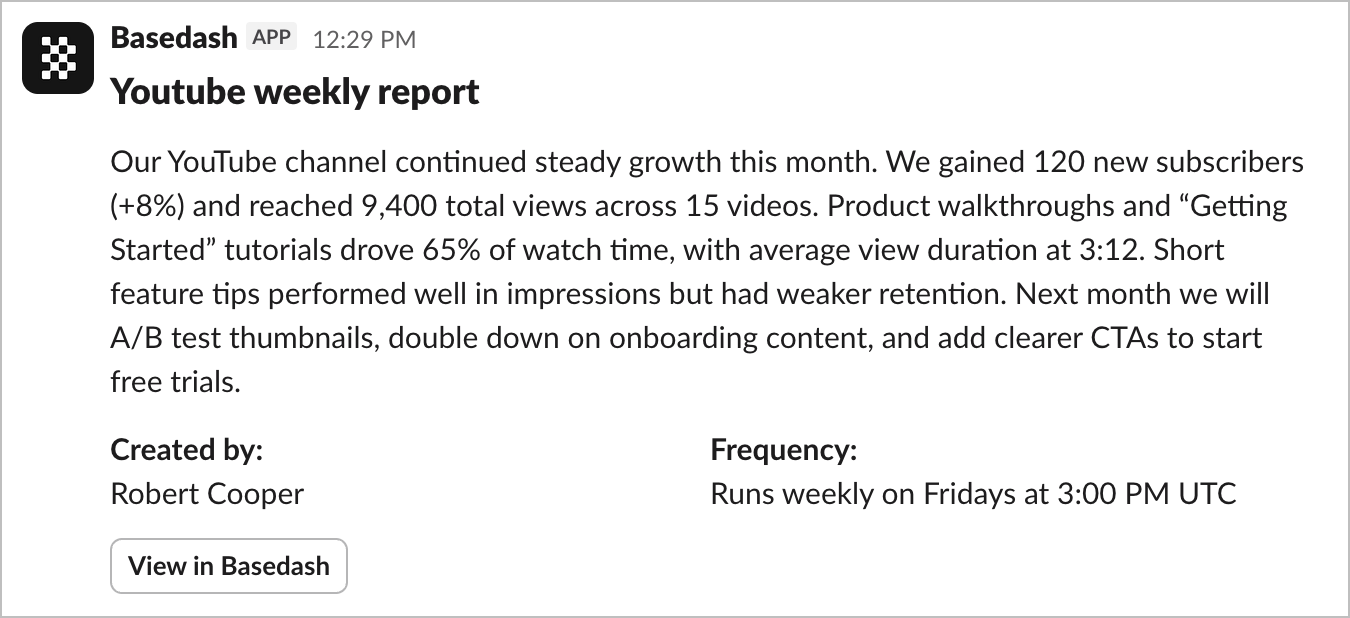
- Open the automation settings panel
- In the “Slack automations” section, connect Slack if you haven’t already
- Select the channel where you want notifications sent
To send automations to private channels, you’ll need to invite the bot to the
channel first by typing
/invite @Basedash in that channel.Insight notifications
Insights can also be delivered to Slack. When Basedash detects a meaningful change in your data — like a spike in signups or a drop in conversion — it posts the insight to your chosen channel, with the supporting chart included as an image. To enable Slack notifications for insights, open Settings → Insights → Notifications in Basedash and select the Slack channel where insights should be posted.Multiple data sources
If your organization has multiple data sources connected, Basedash automatically determines the most relevant one based on context. For ongoing thread conversations, it maintains the same data source throughout the thread for consistency.FAQ
Does Basedash reply without an @mention?
Does Basedash reply without an @mention?
In a direct message with the Basedash app, yes. In channels, mention
@Basedash in every message you want it to answer, including follow-ups in
a thread. When you mention it in a thread, it reads the whole thread for
context.Can teammates without a Basedash account ask questions?
Can teammates without a Basedash account ask questions?
No. Basedash matches people by the email on their Slack profile, so invite
them to Basedash with that same email. Removed members and
view-only members get a private message
explaining that they can’t ask questions.
Can I get the data behind an answer as a CSV?
Can I get the data behind an answer as a CSV?
Yes. Ask for a CSV and Basedash uploads the file to the thread, in channels
and direct messages. The download link in Basedash expires after 30 days. If
files don’t appear, an admin may need to reinstall the Slack app to grant
the newer file permission.
Can I connect more than one Slack workspace?
Can I connect more than one Slack workspace?
No. Each Basedash organization connects to one Slack workspace. To switch
workspaces, disconnect the current one first.
Do Slack questions use AI credits?
Do Slack questions use AI credits?
Yes. Questions in Slack count toward your organization’s AI usage and spend
limits, the same as chats in Basedash. See Billing and AI
usage.